
Every crew member in your database has a ReelCount pass. The Setup → Pass Settings tab gives you control over how those passes are shared and managed.
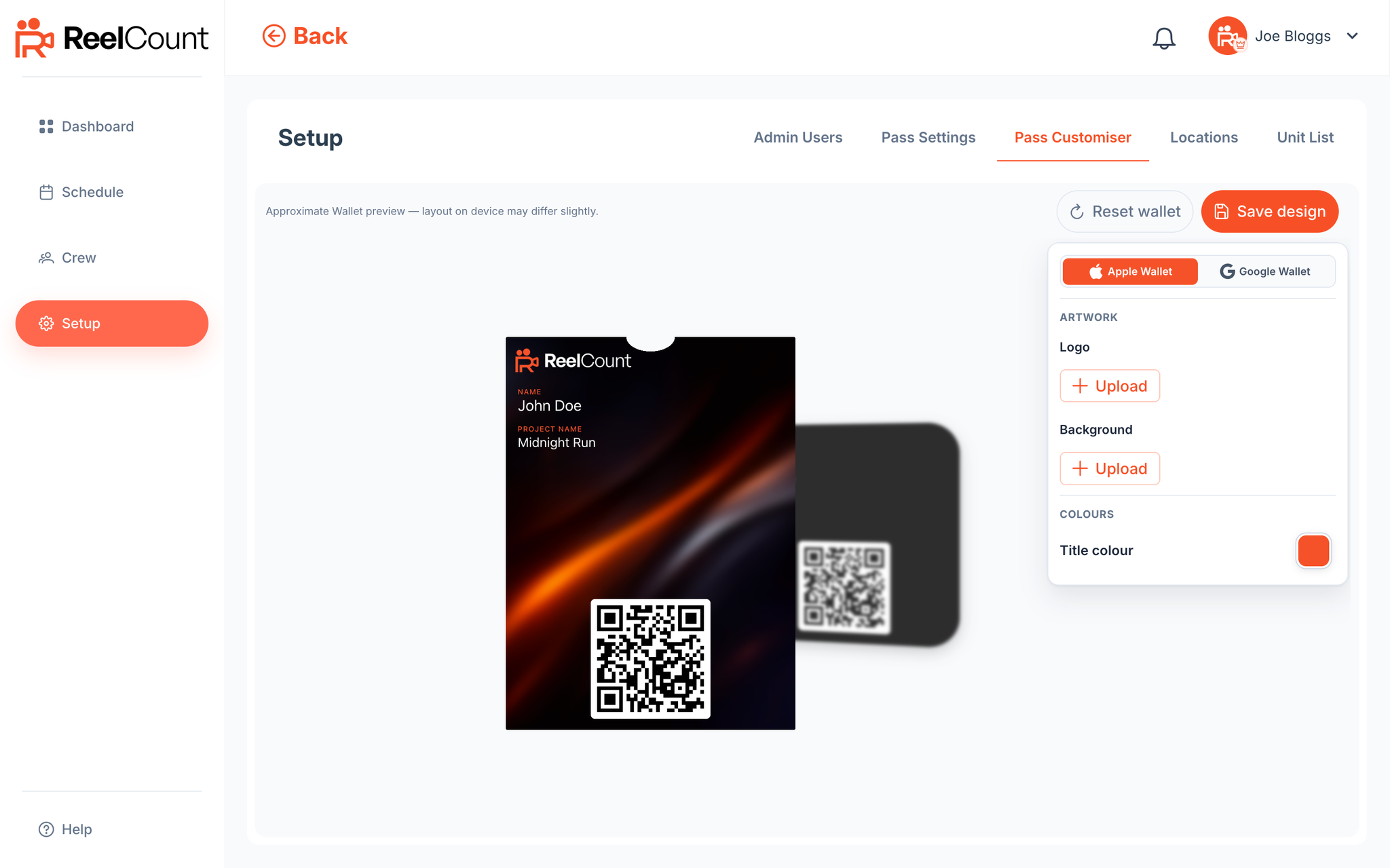
For branding (logo, background, colours), open Setup → Pass Customiser.
Autosend Passes
Look for the "Autosend passes when adding crew" toggle.
- When turned on (the default), new passes are emailed automatically as soon as crew are added.
- When turned off, passes won't be sent until you share them manually. New crew show as Not Sent until you do.
Crew Passes List
The Crew Passes table lists everyone in your database. Each entry shows:
- Crew member's name
- Pass Status – Issued, Revoked, or Not Sent
- Date the pass was created
- When it was last shared (shows Never if it hasn't been sent yet)
There's a search bar to find people quickly.
Sharing Passes
Next to each entry is a Share Pass button.
- The email field is pre-filled with the crew member's address, but you can change it to send the pass to any email. Useful if someone else needs to collect on their behalf.
- Sharing again doesn't create a new pass for someone whose pass is already issued. It re-sends their existing one.
- If their pass was revoked or never sent, Share Pass issues them a fresh pass.
You can also send a pass from the crew member's info card on the Crew page: Issue Pass if they have never been emailed one, or Re-Send Pass after that.
To issue every Not Sent pass at once, use Send all passes to unissued crew (on a smaller screen this reads Send to unissued). From the Crew page, the id-card icon on a department header issues passes for that department.
Revoking Passes
Passes with status Issued also have a Revoke Pass button. Revoking invalidates the QR immediately. In Apple Wallet the pass is marked void; in Google Wallet it shows as expired. You can re-send a new pass to the same person later.
VIP Passes
Above the crew list you'll find VIP Passes: standalone passes that aren't tied to a crew member or a schedule. VIPs can collect at any location with an active session, without being scheduled. You can add, share, and delete VIP passes here.
Your Plan's Pass Limit
At the top of the Crew Passes section you'll see Crew & VIP Passes: N / limit if your plan has a cap, plus a usage bar. That count is every crew member plus every VIP pass. When the limit is reached, you cannot add more crew or VIP passes until you remove one or upgrade. Revoking a pass does not free a slot. Existing issued passes always keep working.
Pass Emails
When sent, passes arrive in an email with buttons to add the pass to Apple Wallet or save it to Google Wallet.
If someone digs out an old pass email much later and the download link no longer works, just use Share Pass to send them a fresh copy. It's the same pass.
How Passes Work
- Each pass shows only the crew member's name, the project name, and a QR code. Nothing more, to protect data.
- If a crew member is deleted, all copies of their pass instantly stop working (including those already saved to phones).
And that's Pass Settings and Distribution: everything you need to manage how passes are shared with your crew.