
The Setup tab is where you'll build the backbone of your project. It has five sections:
- Admin Users
- Pass Settings
- Pass Customiser
- Locations
- Unit List
Admin Users
Here you'll manage who has access to your ReelCount account.
Click Add user to invite someone new.
Enter their email address and choose a role:
- Owner – full access, including inviting users and changing roles. Every account has one Owner.
- Admin – manages production settings, but only the Owner can invite users or change roles.
- Editor – can edit crew, schedules, and passes.
- Viewer – can see information but can't change anything.
Click the "i" icon at the top of the tab any time for a reminder of what each role can do.
Once you invite someone, they appear under Pending invitations. Use Copy link to send them their personal invitation link, or Revoke if you change your mind. After they complete setup, they'll appear in your users list. You'll also see how many admin seats your plan includes (for example "2 / 5 seats used · 1 pending").
To remove a user, click the bin icon next to their name.
Pass Settings
This section controls your passes: both crew passes and VIP passes.
- Autosend passes when adding crew – switch this on if you want passes emailed automatically as soon as new crew are added.
- If it's off, you'll need to send passes yourself: from each crew member's card (Issue Pass the first time, Re-Send Pass after that), with Send all passes to unissued crew on this tab, or via Share Pass.
The Crew Passes table lists everyone, showing:
- Name
- Pass Status – Issued, Revoked, or Not Sent
- When the pass was created and when it was last shared
- Actions: Share Pass, and Revoke Pass for issued passes (Apple: voided in Wallet; Google: marked Expired)
You'll also see Crew & VIP Passes: N / limit if your plan has a cap. That count is every crew member plus every VIP pass, not only issued wallet passes. If you hit the limit, you cannot add more crew or VIP passes until you remove someone or upgrade. Revoking a pass does not free a slot.
There's a separate VIP Passes table too. VIP passes aren't tied to a crew member or a schedule, so they're perfect for visiting execs and unexpected guests. Add one with Add VIP Pass, then share or delete it from the table.
Sharing passes
Use the Share Pass button to send a pass to any email address. This doesn't change the crew member's main email; it simply sends the pass again. Handy if someone can't find the original email.
To issue every Not Sent pass in one go, use Send all passes to unissued crew (on a smaller screen the button reads Send to unissued).
Pass Customiser
The Pass Customiser is where you design your wallet passes. Switch between Apple Wallet and Google Wallet to see a live preview of each, and set:
- A logo and background image for each wallet type (with a built-in cropper)
- For Google Wallet, choose Small (circular logo with the production name beside it) or Wide (a wide mark that replaces the logo and production name at the top)
- Title colour (Apple Wallet) or background colour (Google Wallet)
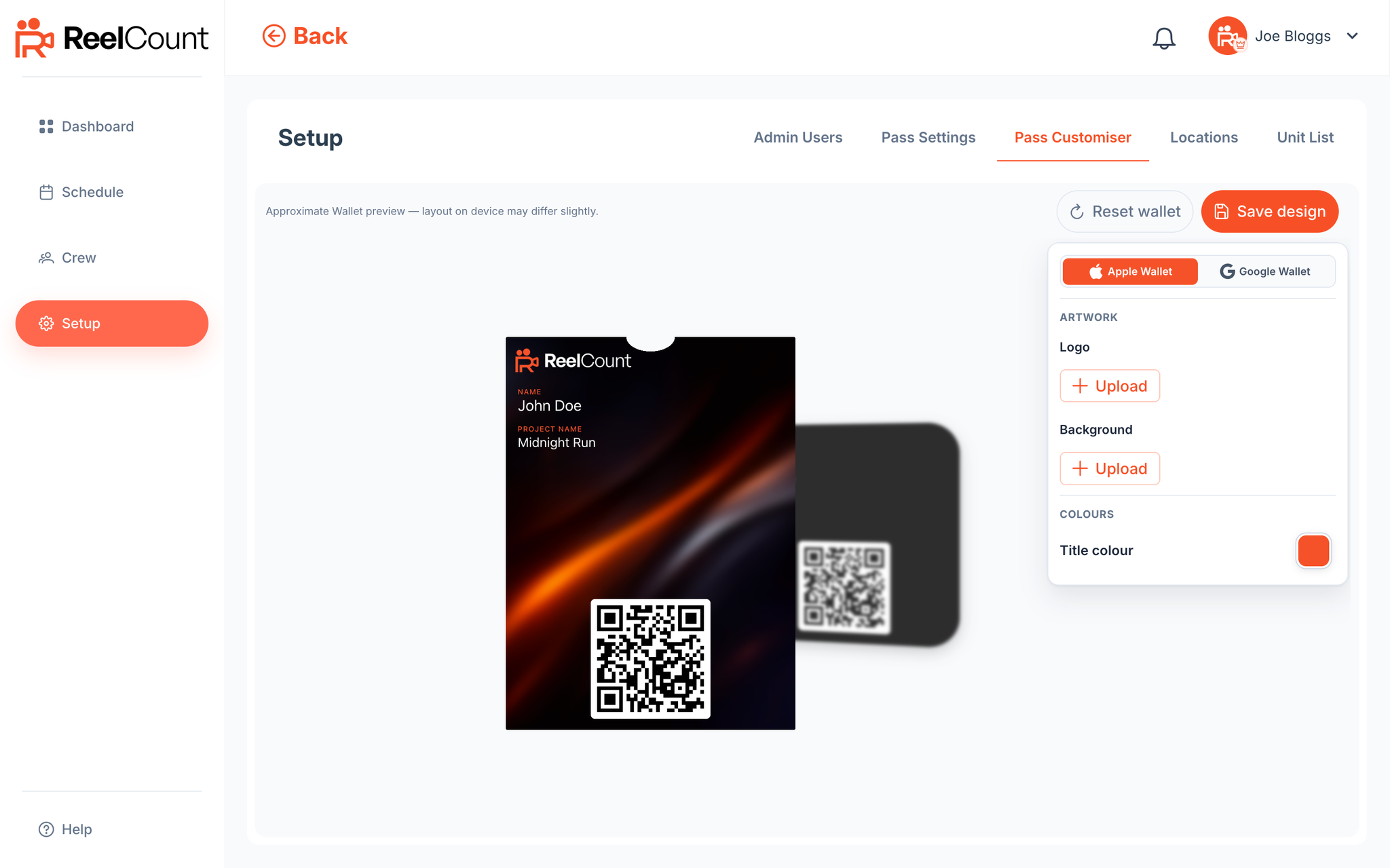
Save each wallet's design when you're happy, or reset it back to the default. Pass customisation is available on plans that include it. If yours doesn't, you can still explore and preview designs here.
Locations
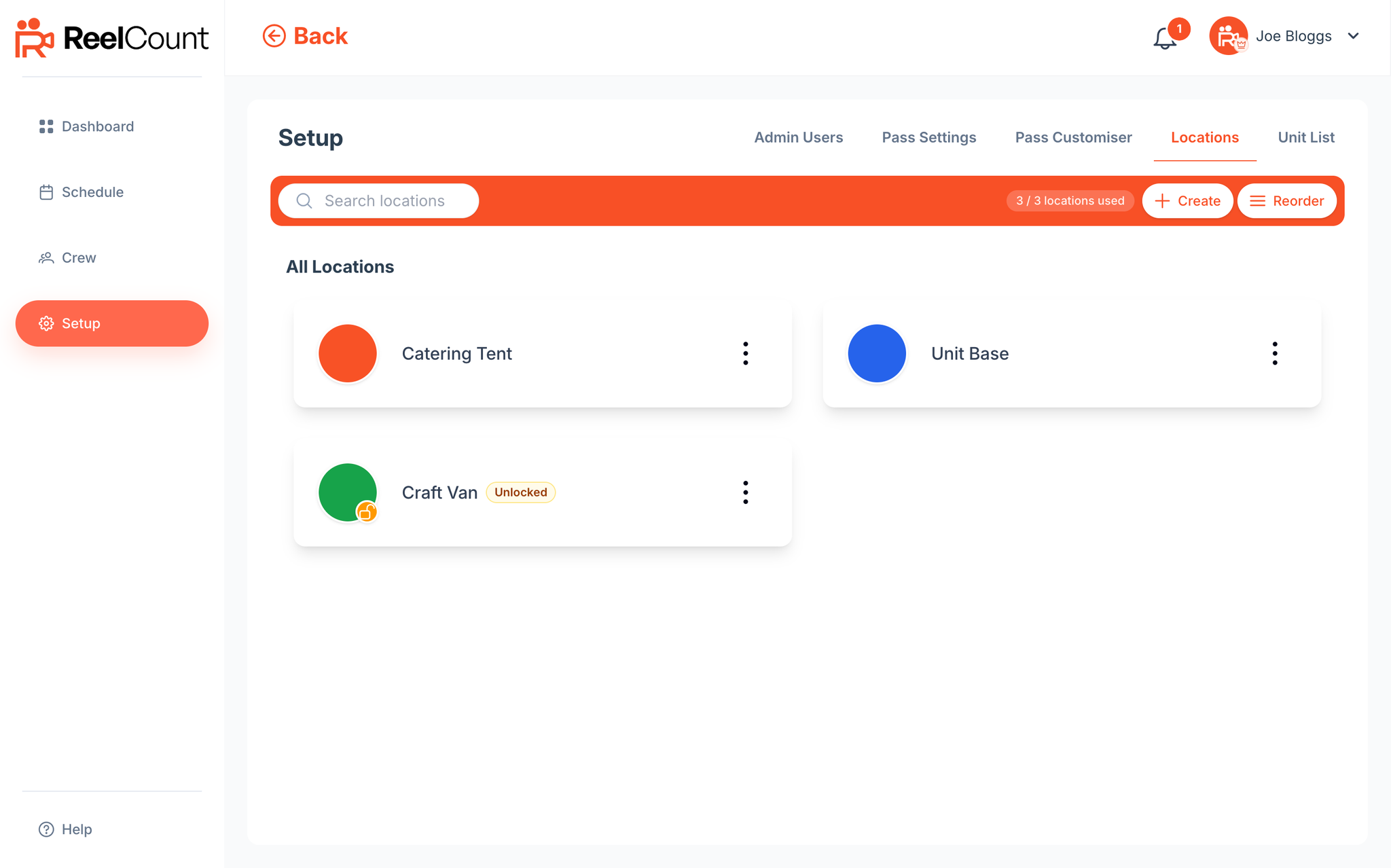
This is where you create the catering locations that appear on your Dashboard, Schedule, and in the Scanner app.
Click Create and fill in:
- Location Name
- Location colour – used for the scanner pop-out border and schedule labels
- House photo – the image shown on the iPad scanner at this site (landscape 4:3), with a live Home / Home + desk preview
- Quick department pickups – toggle this on to add Department quick pickup on the scanner at locked and unlocked locations
Each location card has a three dots menu where you can:
- Find and copy its Location Code (the 6-digit code needed to connect the Scanner app)
- Edit or delete the location
You can also Reorder your location cards, and you'll see how many locations you've used against your plan's allowance.
⚠️ Note: Deleting a location removes it from any future sessions (and removes its panel from the Dashboard). Past session data is kept and still visible in the Schedule's day view.
You may also spot an Unlocked location option when creating a location: a special kind of collection point (craft, coffee) where the crew you schedule can collect as many times as they like while a session is running, instead of once. It's rolling out gradually, so on some accounts it still shows as coming soon. See Setting up a Location for the details.
Unit List
Finally, the Unit List tab lets you organise how your crew database is structured.
- Add a new unit with the Create button.
- Use Reorder to change the order units appear in. This affects the Crew and Schedule pages.
- Each unit card has a three dots menu to edit or delete it.
- Departments sit within units and are managed from the Crew page. They delete themselves automatically when the last crew member in them is removed.
- Units behave differently: even if they're empty, they'll stay listed here until you delete them manually.
And that's the Setup tab: the place to configure who's using ReelCount, how your passes look, where your sites are, and how your crew database is structured.
Related Articles