The Setup → Locations tab is where you manage your catering sites. These locations appear throughout ReelCount — in the Dashboard, Schedule, and Scanner app.
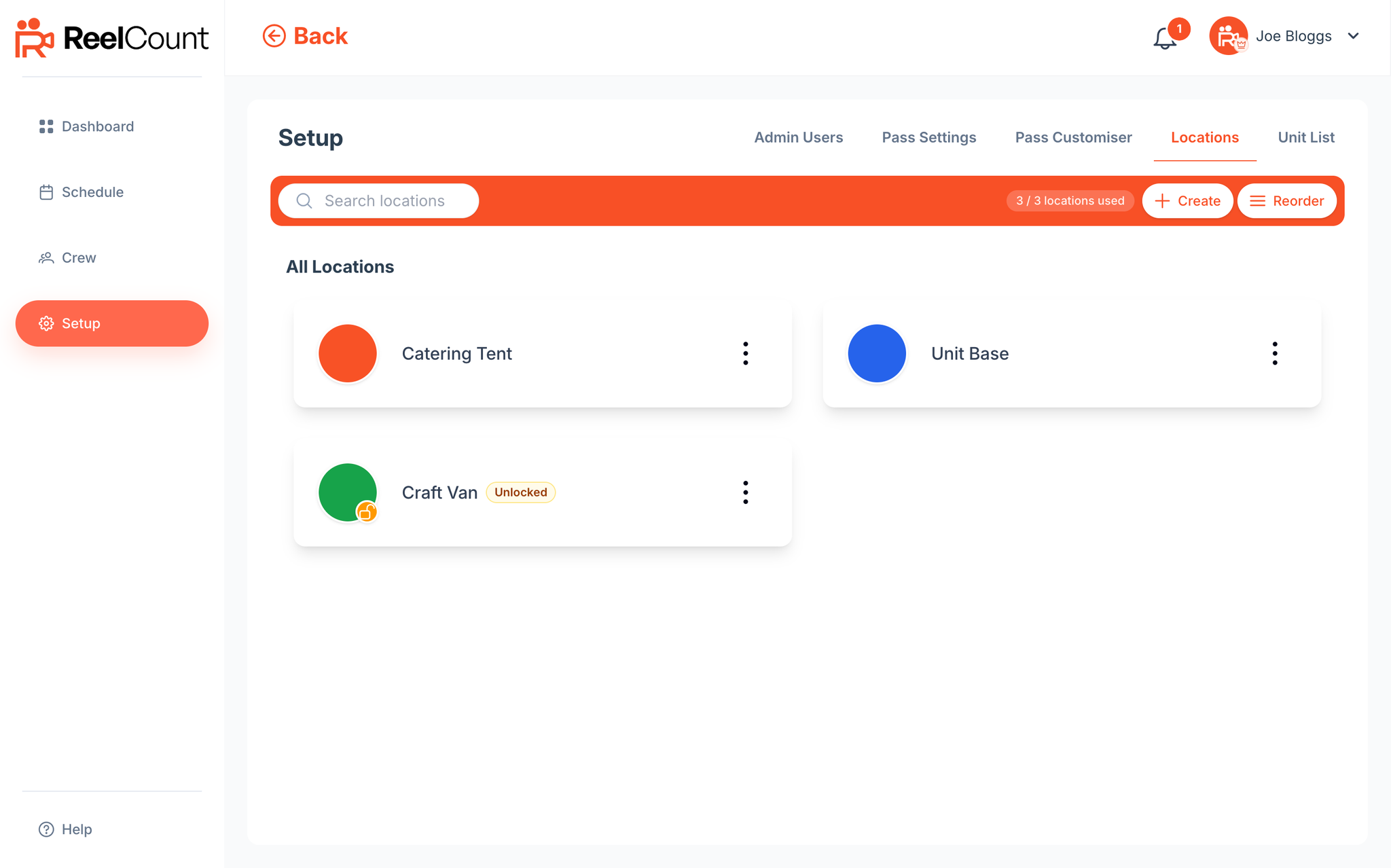
Creating a Location
Go to Setup → Locations.
Click Create.
Fill in the details:
- Location Name – how the site will be displayed across the project (at least 4 characters).
- Location colour – used for the scanner pop-out border and schedule labels.
- House photo – the image on the iPad Scanner (landscape 4:3 works best). Keep the lower-left fairly quiet for the venue name. If you don’t upload one, the built-in ReelCount House is used — nothing is uploaded for the default.
- Quick department pickups – switch this on to add Department quick pickup on the scanner at locked and unlocked locations, so crew can collect for their whole department in one flow.
As you fill things in, a live Scanner preview shows Home (full-bleed House / Tap to start) and Home + desk (House beside or above the Desk). Switch Portrait / Landscape to match how the iPad is mounted.
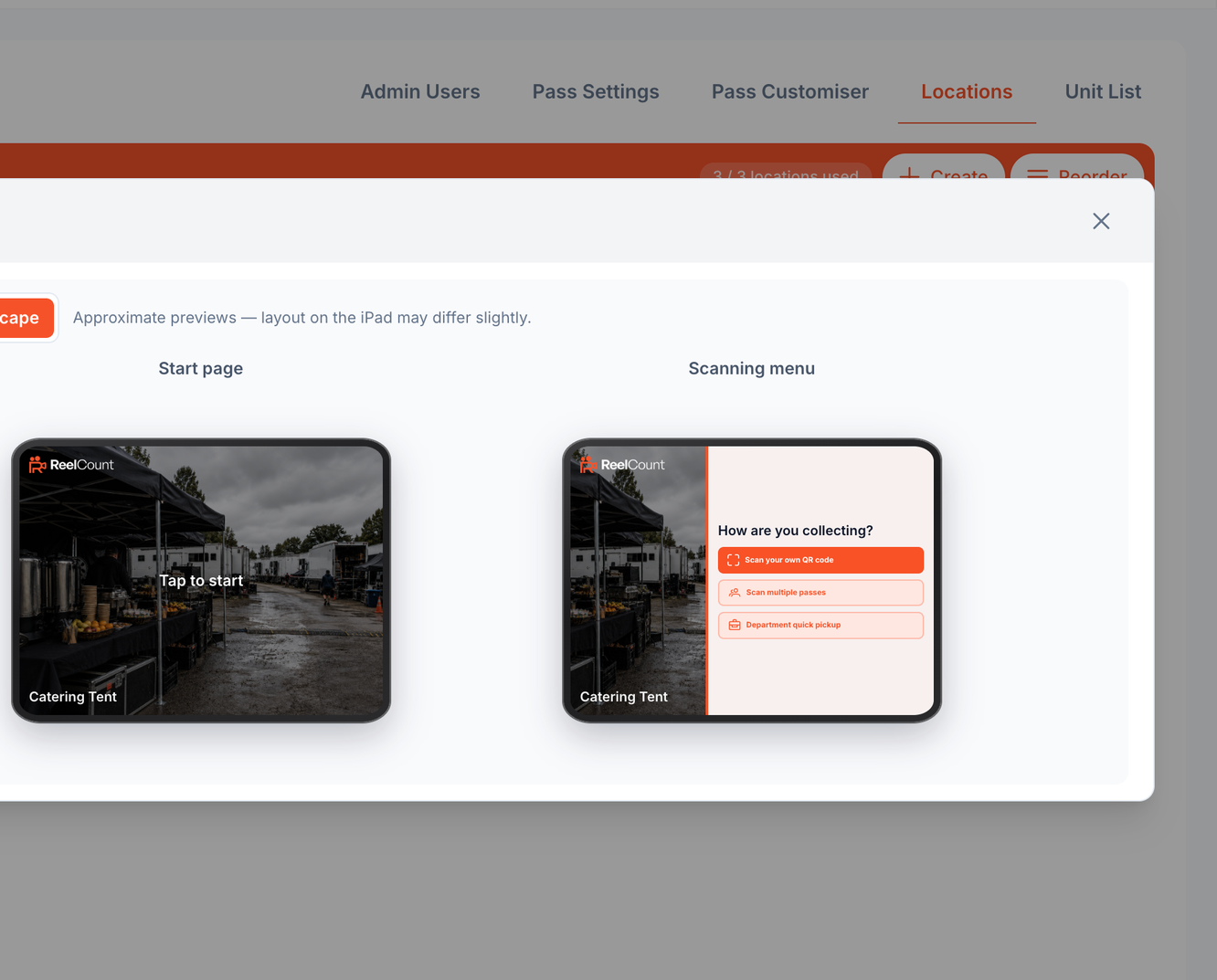
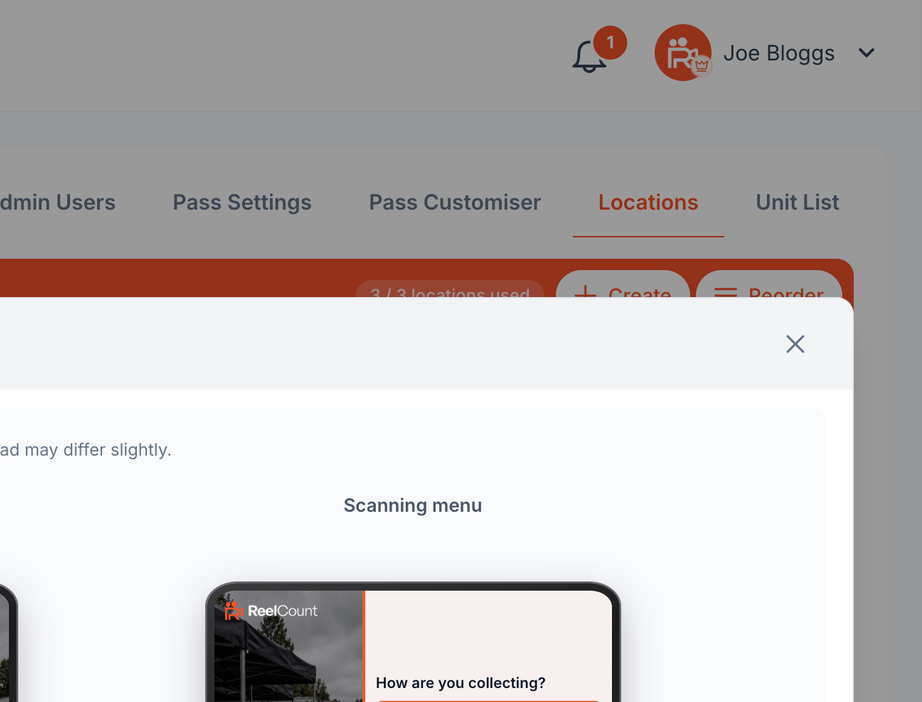
Each new location automatically gets a 6-digit location code, used to connect the Scanner app.
ℹ️ Depending on your plan, there may be a limit on how many locations you can have. If you hit it, delete an unused location or upgrade your plan.
ℹ️ Pass and scanner customisation (including background images) isn't included on every plan — if it's locked, you can still preview designs but not save custom artwork.
Editing and Deleting Locations
Each location card has a menu (⋯) where you can:
- View and copy the location code (used to connect the Scanner app)
- Edit the location's details — including turning Quick Pickup on or off
- Delete the location completely
There's also a Reorder button to change the order locations appear in.
⚠️ Warning: Deleting a location can't be undone. The location is removed from all upcoming sessions (and any upcoming session left with no location at all is deleted). Past collection history is kept.
Location Backgrounds
The House photo you upload is shown full-bleed on Tap to start, then pans so its centre stays in the House when the Desk opens. We strongly recommend your own branding — otherwise the built-in ReelCount House is used instantly, with no Storage upload. Default clears custom artwork and returns to that built-in House, including after a custom image has already been saved.
Best Practice for Scanner Setup
- Place the iPad on a stable stand so crew can scan themselves easily.
- Use the iPad's Guided Access mode to lock it to the ReelCount app and prevent tampering.
- Keep the iPad connected to Wi-Fi — the scanner requires a live internet connection.
- For busy sites, you can run multiple iPads with the same location code.
And that's Location Settings and Customisation — everything you need to get your sites ready for daily use.