
Once the Scanner app is installed, it needs to be connected to a location before it can be used. Each location has its own unique six-digit code, generated in the admin portal when the location is created.
Finding the Location Code
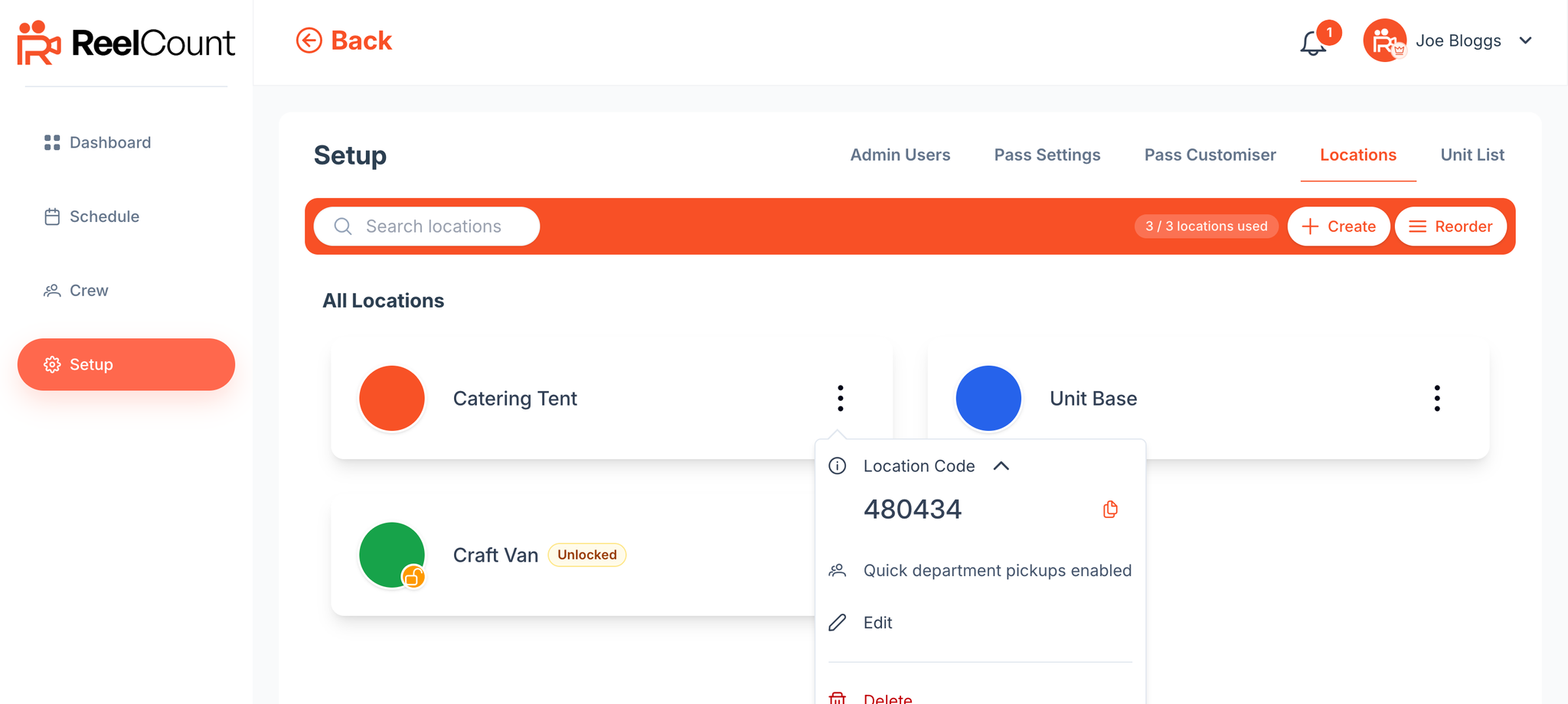
- Go to Setup → Locations in the admin portal.
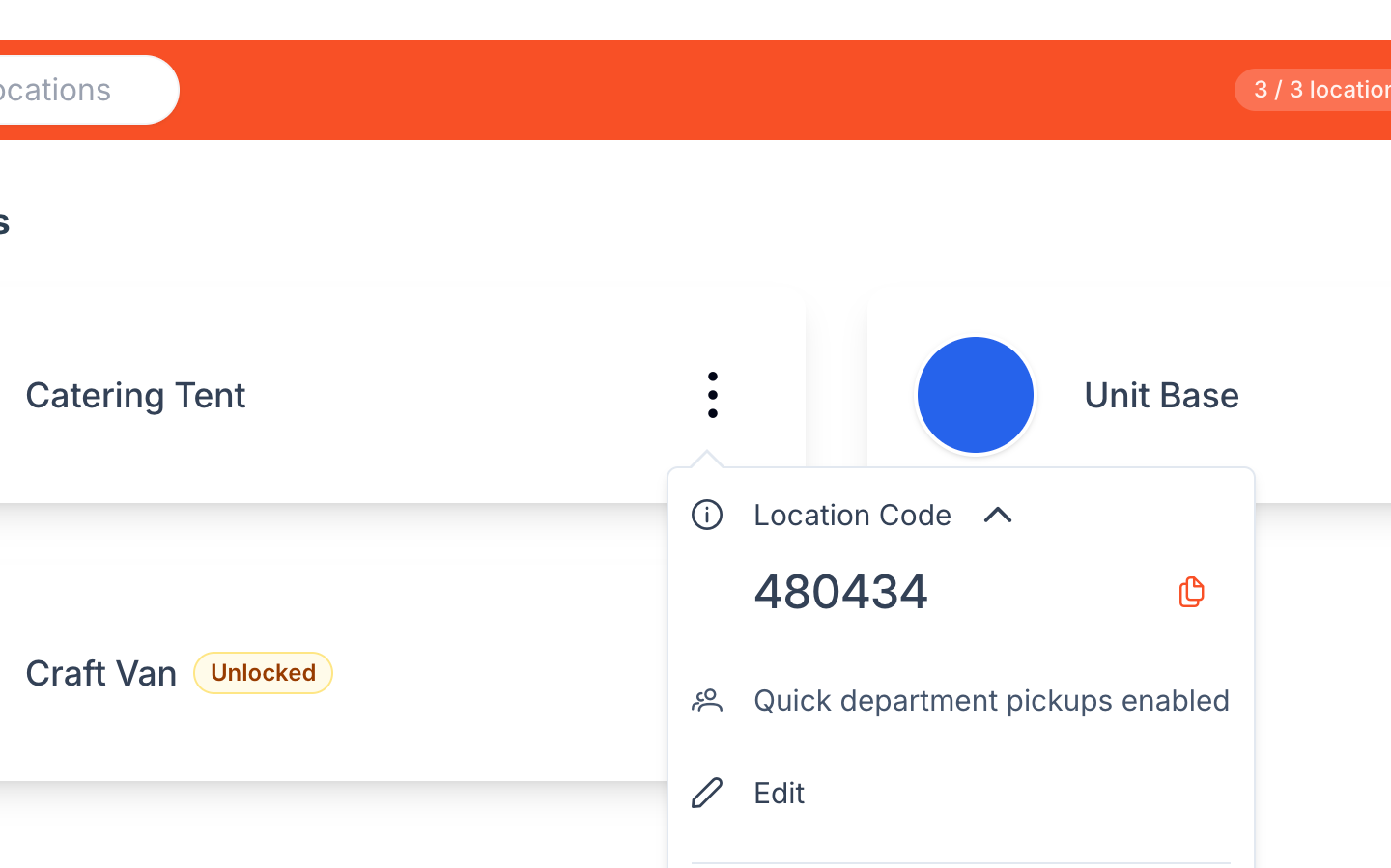
- Click the three dots on the location's card.
- Click Location Code to reveal the six-digit code — there's a copy button next to it so you can paste it into a message to whoever is setting up the iPad.
- Each code is unique and cannot be changed.
Entering the Code in the App
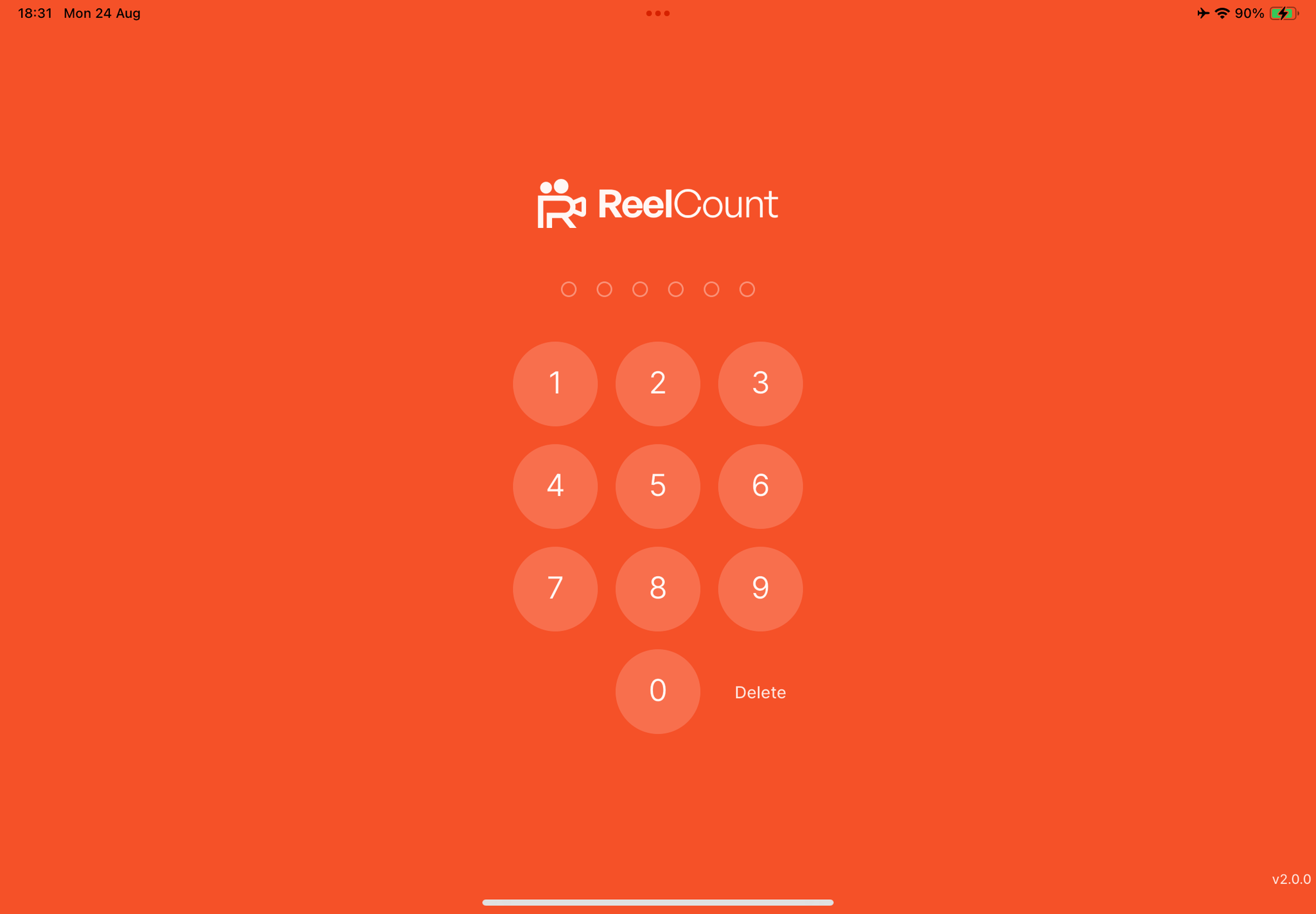
- Open the Scanner app on your iPad.
- You'll see a coral full-screen venue code pad with six dots. Tap the digits — there's no separate Log In button; the sixth digit submits automatically.
- If the code isn't recognised, you'll see Invalid venue code — double-check the digits and try again. A connection problem shows Check the internet connection and try again.
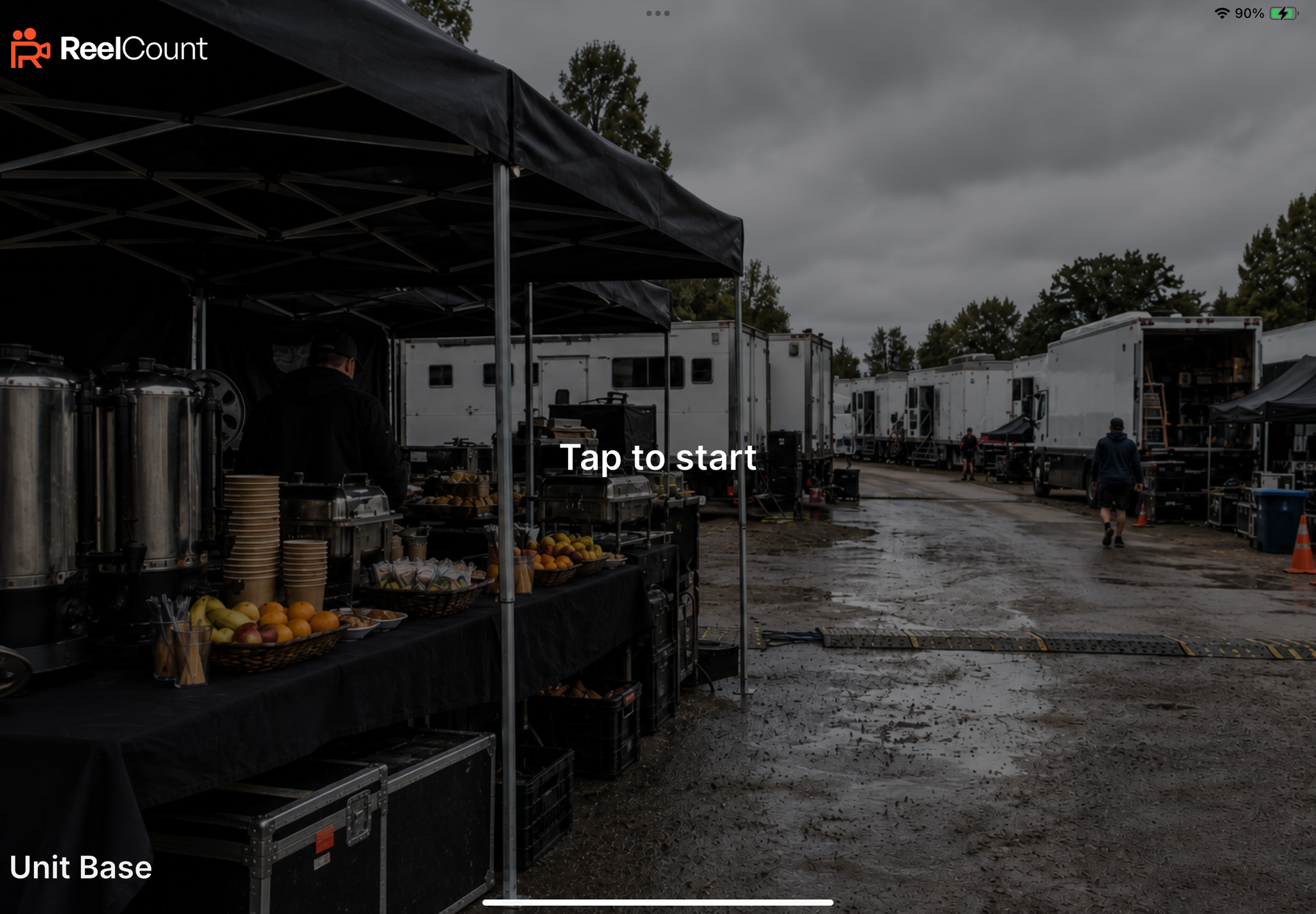
- Once connected, the app shows your venue House photo with the location name. When a meal session is running you'll see Tap to start; outside session hours you'll see Not serving, Service has ended, or No session today — that means schedule timing, not a fault. If the iPad can't reach ReelCount, you'll see Attempting to reconnect… instead (check Wi-Fi).
- The app remembers the venue code after login. Relaunching reconnects automatically. Use Change venue code on a closed or error Desk, or hold the bottom-right corner on Tap to start for about three seconds to log out and enter a different code.
Using Multiple iPads
- You can use the same location code on multiple iPads.
- This is useful at busy sites where you want more than one check-in point.
- All iPads stay in sync via the internet.
Key Points
- Each location has a unique, randomly generated six-digit code.
- The Scanner app must be online to accept codes — every code is checked with ReelCount in real time.
- The app remembers the code between launches — you only re-enter it when switching sites or after logging out / Change venue code.
That's how to connect the ReelCount Scanner app to a location.
Related Articles