The Scanner app requires a constant internet connection and the correct venue code to work. If you're having problems, here are the most common fixes.
Know what the home screen is telling you
The scanner shows different messages depending on whether the problem is schedule, network, or setup:
| Message | Usually means | What to do |
|---|---|---|
| Tap to start | A session is live — all good. | Begin scanning. |
| Not serving | No session is running now (may show Next session times). | Check Schedule in the admin portal — is a session due at this location today? |
| Service has ended | Today's sitting finished. | Wait for the next session, or check Schedule. |
| No session today | Nothing scheduled at this location today. | Add crew to a session or check the location on the day view. |
| Attempting to reconnect… | Network or backend unreachable. | Check Wi-Fi; wait for auto-retry or tap Return to start. |
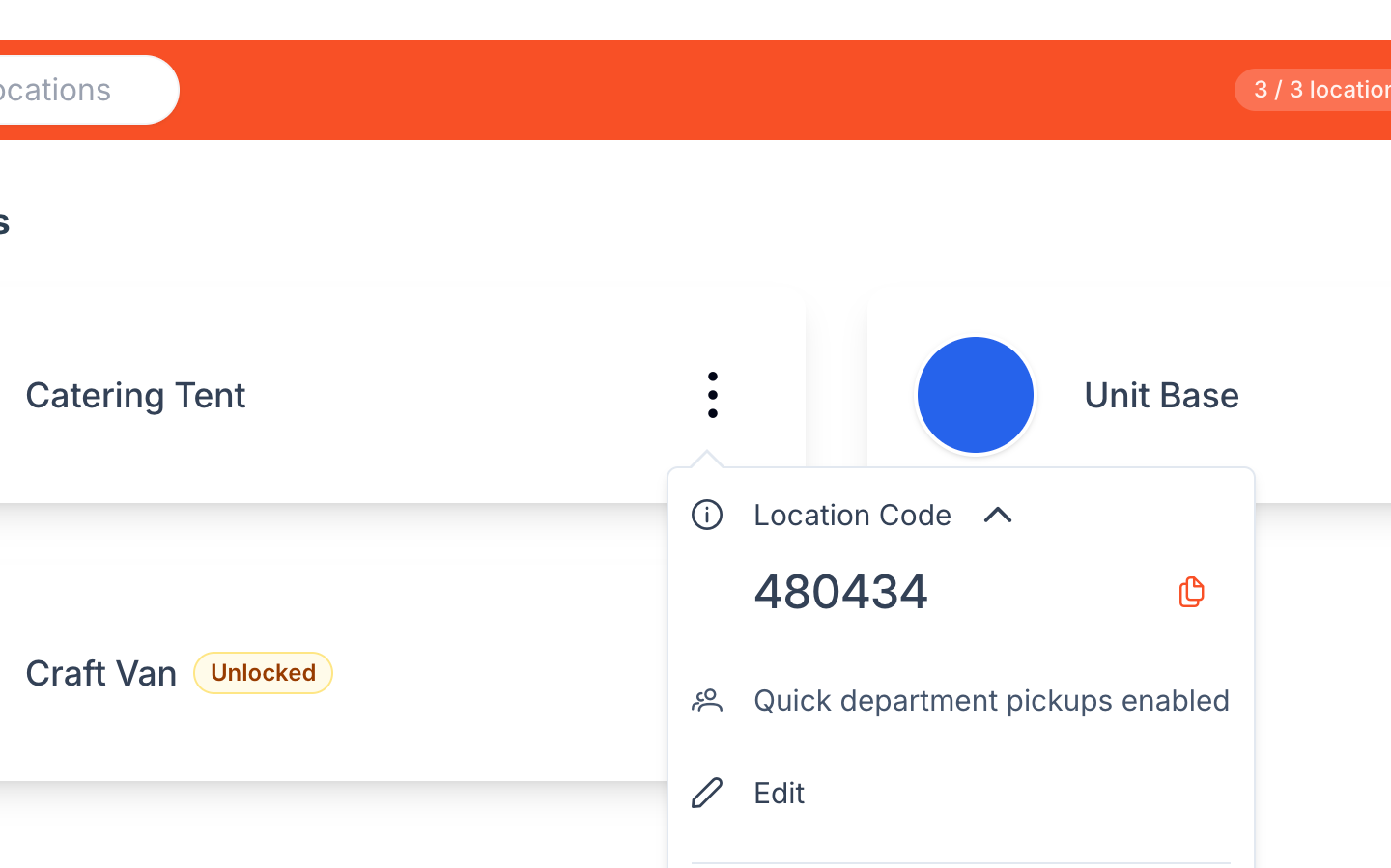
| Invalid venue code | Wrong or mistyped code. | Copy the code again from Setup → Locations → ⋯ → Location Code. |
Not serving is not the same as losing Wi-Fi. If the venue name appears and the Desk shows session hours, the app is online.
Check the Internet Connection
- Make sure the iPad is connected to Wi-Fi.
- Test by opening a webpage in Safari.
- If the Wi-Fi is unstable, move closer to the router or switch to a stronger network.
- On the home screen, Attempting to reconnect… clears once connectivity returns.
During scanning, a failed check shows an amber Couldn't reach ReelCount Desk with This pass has NOT been checked. That means the pass was not collected — scan again when Wi-Fi is back.
⚠️ Note: There is no offline scanning mode. Every pass is verified live against your schedule.
Confirm the Venue Code
- If you see Invalid venue code, check that the correct 6-digit code has been entered.
- To find a code, go to Setup → Locations in the admin portal, open the location's menu (⋯), and expand Location Code — there's a copy button next to it.
- The app remembers the venue code after you connect. Relaunching the app reconnects automatically — you don't need to re-enter the code every time.
- To switch sites, tap Change venue code on a closed or error Desk, or hold the bottom-right corner on Tap to start for about three seconds to log out.
Restart the App
- Close the Scanner app completely and reopen it.
- The saved venue code should reconnect on launch.
- If the iPad is stuck on Attempting to reconnect…, fix Wi-Fi first, then restart.
Reboot the iPad
If problems persist, restart the iPad to refresh the connection.
When to Contact Support
If none of the above fixes the issue, contact ReelCount support at support@reelcount.com. Include:
- Your project name
- The location code you are trying to use
- The device model (e.g. iPad 10th Gen)
- A screenshot of the home screen or any error message
Key Points
- Not serving / Service has ended / No session today = no active session — check Schedule, not Wi-Fi.
- Attempting to reconnect… = connectivity — check Wi-Fi and retry.
- Couldn't reach ReelCount during a scan (amber) = pass was not checked — safe to retry.
- The venue code is remembered between launches; use Change venue code or the logout hold to switch sites.
That's how to troubleshoot Scanner connection issues and get back up and running quickly.
Related Articles