
When you first log in to ReelCount, you'll land on the Dashboard. Think of this as your control room. It gives you an at-a-glance view of what's happening today across all of your catering locations.
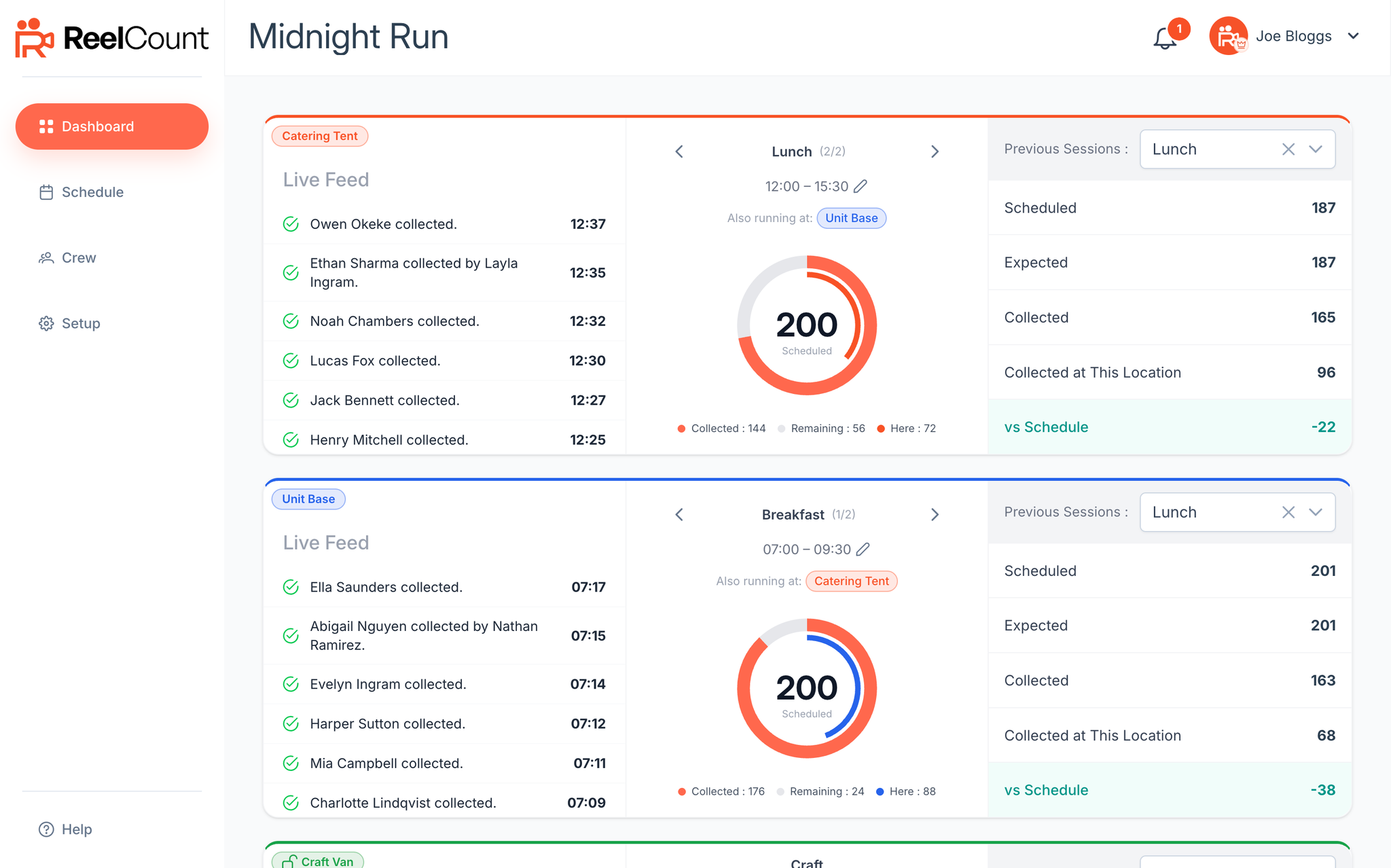
At the very top of the page you'll see your production name. This name is the same for everyone using your account. To change it, open the account menu (your avatar in the top right), choose Account, and edit Production name on the Overview tab. Only the account Owner can change it.
Next to that you'll find the notification bell (session start and end reminders; see Understanding the Notification Bell) and your account menu, where you can open Settings (your profile and password), Account (production name, billing, and plan usage), visit the help centre via Support, or Log Out. On a computer, Help is in the sidebar. On a phone it is in the account menu.
When You First Log In
The Dashboard will look empty the first time you see it. Don't worry. As soon as you add your first location in the Setup tab, it'll appear here. You'll see a "Set Up Locations" button to take you straight there.
What Each Location Shows
Every location gets its own panel on the Dashboard, showing today's sessions. Each panel is split into three key areas:
- Live Feed – real-time activity of crew collecting meals.
- Session progress ring – today's numbers at a glance, one session at a time.
- Previous Sessions – a look back at completed sessions.
Live Feed
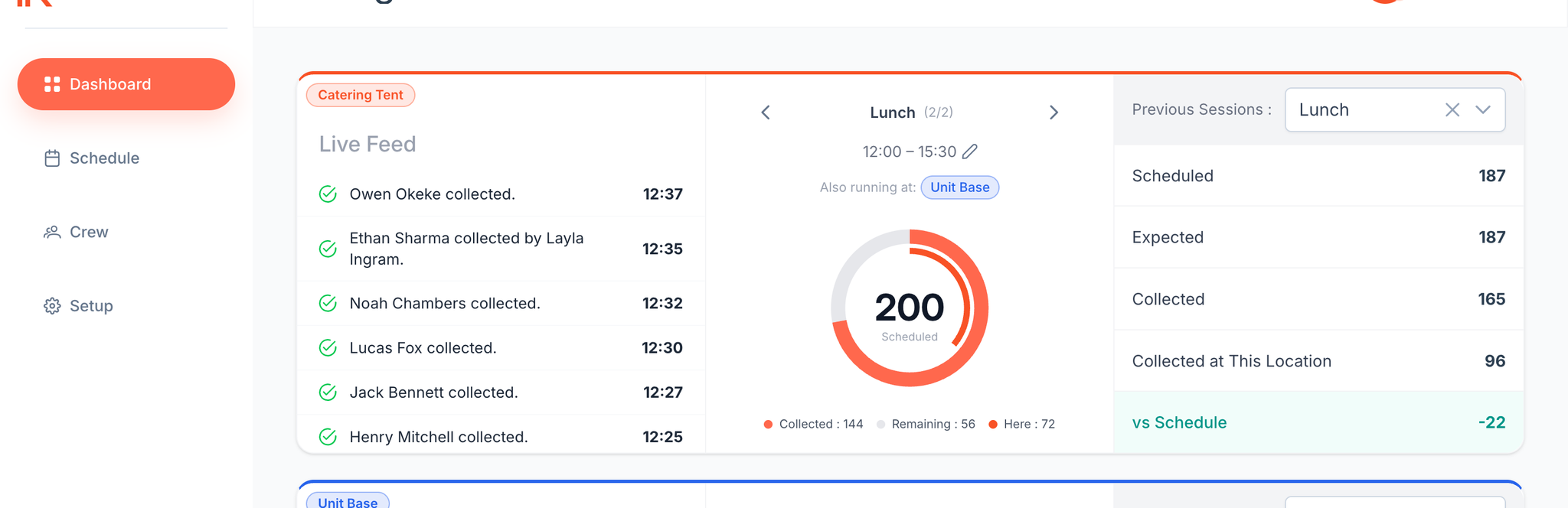
The Live Feed is a running log of collections happening at that location during the current session. You'll see:
- The crew member's name
- Whether they collected for themselves, someone collected on their behalf, or an admin marked them as collected
- The time it happened
| How a pass was scanned | Message displayed on the feed |
|---|---|
| A crew member uses their own pass | Joe Bloggs collected. |
| A crew member scans on behalf of another crew member | Jane Doe collected by Joe Bloggs. |
| An admin manually marks a name as collected in the Day Overview | Jane Doe collected by admin Joe Bloggs. |
| A VIP pass is scanned | Meal collected by VIP pass holder: Joe Bloggs. |
| A pass is refused (not scheduled, etc.) | Joe Bloggs denied. |
| A pass already collected this session (scanner shows Already scanned) | Joe Bloggs denied. (Feed copy may say denied; meal was not collected twice.) |
Crew can also use Scan multiple passes on the scanner to collect for several people in one go. Department quick pickup (if enabled on the location) does the same for a whole department in one confirm — including at unlocked craft/snack sites.
Session Progress Ring
The middle of each panel shows the current session's name and times, with a progress ring that fills up as collections are made:
- Scheduled – the big number in the centre: the headcount frozen when the session went live (the number your caterers ordered for). After go-live it stays put if you add or remove crew; only Expected moves. If you move the session's start into the future, Scheduled opens again until that new start, then freezes once more.
- Collected – how many meals have been picked up so far.
- Remaining – scheduled crew who haven't collected yet.
- VIP – walk-in collections made with VIP passes (these count as collections but were never part of the scheduled number).
- Here – on sessions running at more than one location, an inner arc in the location's colour shows how many collected at this site.
If the live Expected number differs from Scheduled (for example, crew added or removed after the session went live), you'll see an "Expecting N" note under the ring.
If a location has more than one session today, use the arrows next to the session name to flip between them. You can also adjust a session's start and end times right from the panel using the small pencil icon. ReelCount checks for clashes with other sessions before saving.
Note: There's no on/off switch for a location. Sessions go live automatically at their scheduled start time and finish at their end time. If nothing is running right now, the scanner at that location shows Not serving, Service has ended, or No session today — not Tap to start.
Unlocked locations (craft, coffee, snacks) appear on the Dashboard like any other site. Collections there can repeat while the session is open — see Using the Scanner App.
Previous Sessions
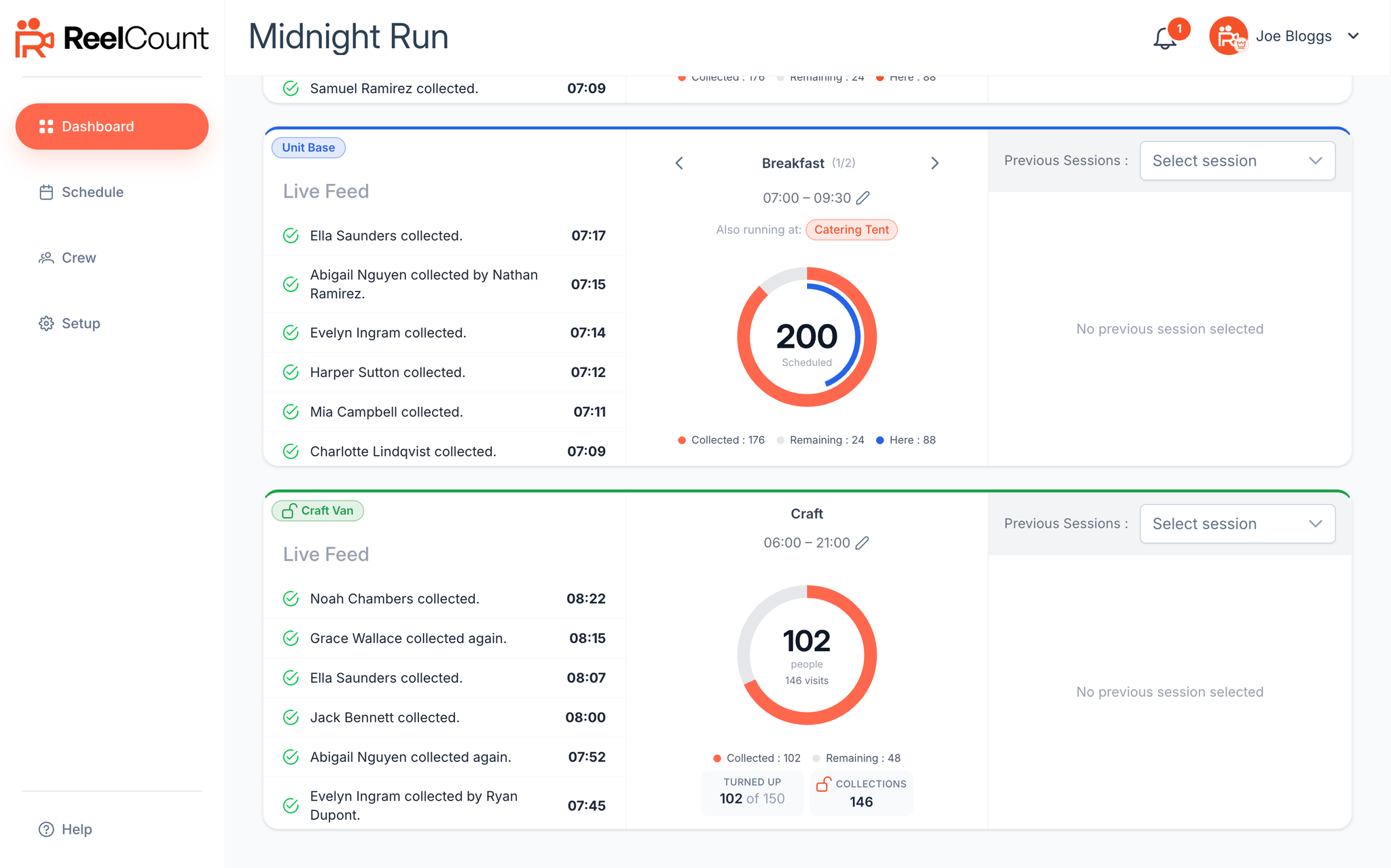
The final section is Previous Sessions. Use the dropdown to pick any completed session, grouped by date. For each one you'll see:
- Scheduled – the headcount when the session went live (the number passed to your catering team).
- Expected – the final forecast for the session.
- Collected – the number of passes actually scanned (or quickly picked up!).
- Collected at This Location – shown for sessions that ran across multiple sites.
- vs Schedule – the difference between Collected and Scheduled, shown as a plus or minus figure.
For a full per-person breakdown of any day (who collected, when, where, and by whom) open that day from the Schedule page.
⚠️ Note: If you delete a location from the Setup tab, its Dashboard panel (including its Previous Sessions view) disappears with it. Past session data is still available through the Schedule page's day view.
And that's the Dashboard: your all-in-one view of activity across your production.
Related Articles