
The Scanner app is used at catering sites to scan crew passes. Once connected to a location, it shows your venue House photo full-bleed, with a Desk panel for collection choices and outcomes.
What you'll see on the home screen
After you enter a venue code, the iPad shows your venue name on the House photo and one of these states:
| Screen | What it means |
|---|---|
| Tap to start | A meal session is running at this location — crew can begin scanning. |
| Not serving | No session is active right now. The Desk may show Next session with the name and hours, and This screen opens when the next session starts. |
| Service has ended | Today's sitting at this location has finished. The Desk may show Today's session with the hours. |
| No session today | Nothing is scheduled at this location today (Nothing is scheduled at this location.). |
| Attempting to reconnect… | The iPad can't reach ReelCount (Wi-Fi or backend). Tap Return to start to go back to the idle House while it keeps trying. |
These are not the same as a network error mid-scan — see When Wi-Fi is slow or drops below.
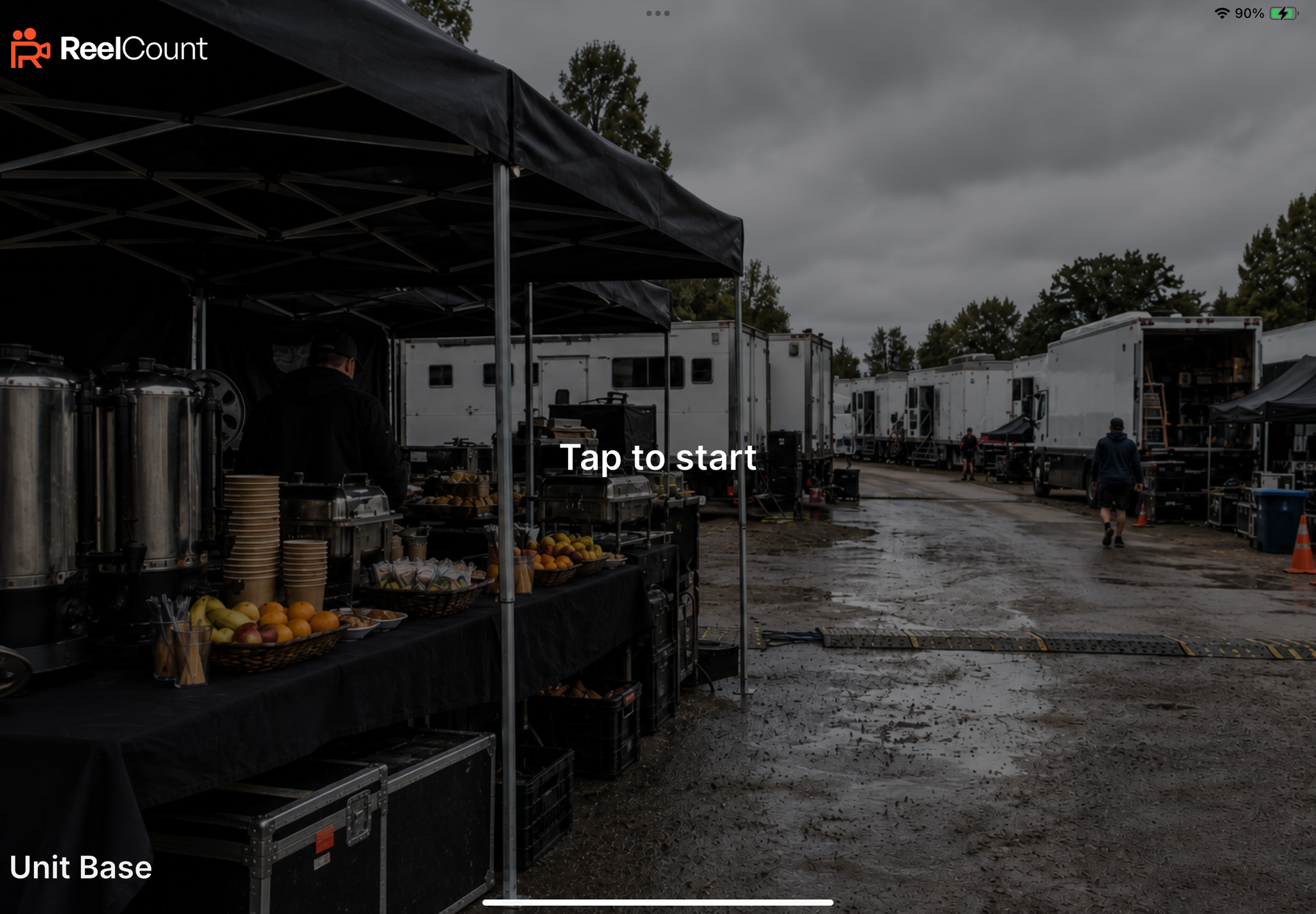
On closed or error Desks, use Change venue code to switch sites. On Tap to start, hold the bottom-right corner for about three seconds to log out (you'll be asked to confirm).
Starting the Scanner
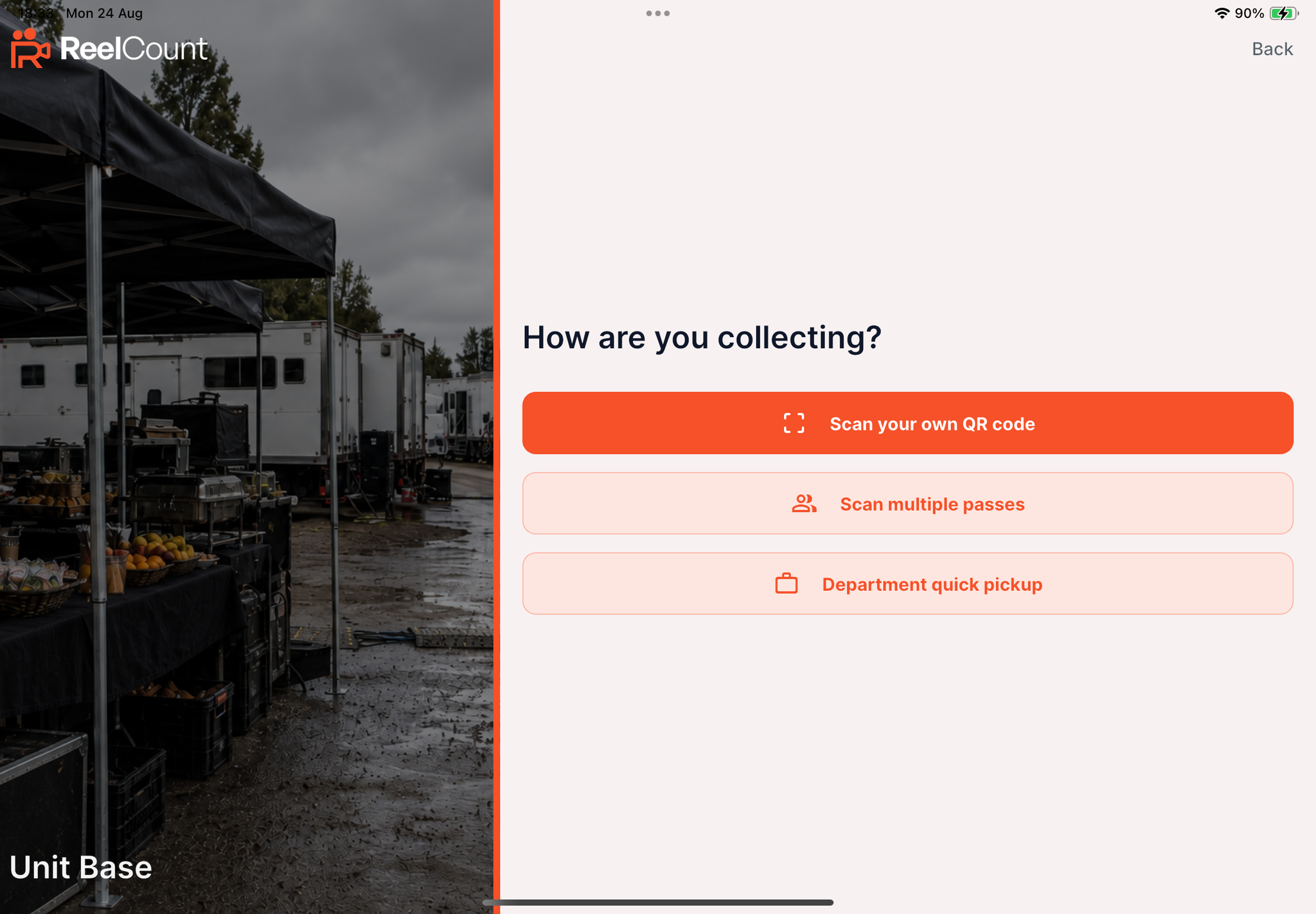
When the home screen shows Tap to start, tap anywhere on the screen. The Desk asks How are you collecting? with:
- Scan your own QR code – a single crew member collecting their own meal.
- Scan multiple passes – one crew member collecting on behalf of others.
- Department quick pickup – only where you've enabled Quick department pickups in Setup → Locations → Edit (locked and unlocked locations).
Scanning a Pass
- The crew member holds their wallet pass QR code up to the camera (the front camera by default, which is ideal for a mounted iPad). The overlay says Hold your pass in the frame.
- If valid, a green Approved screen appears and the app returns to the start after a few seconds (Redirecting you to start.).
- If the pass isn't valid for this session, a red Denied screen appears with the reason — for example This pass hasn’t been scheduled for this session.
- If the pass was already collected in this session, the app shows Already scanned (amber) with This pass has already been collected. and often who collected it and when — not a red denial.
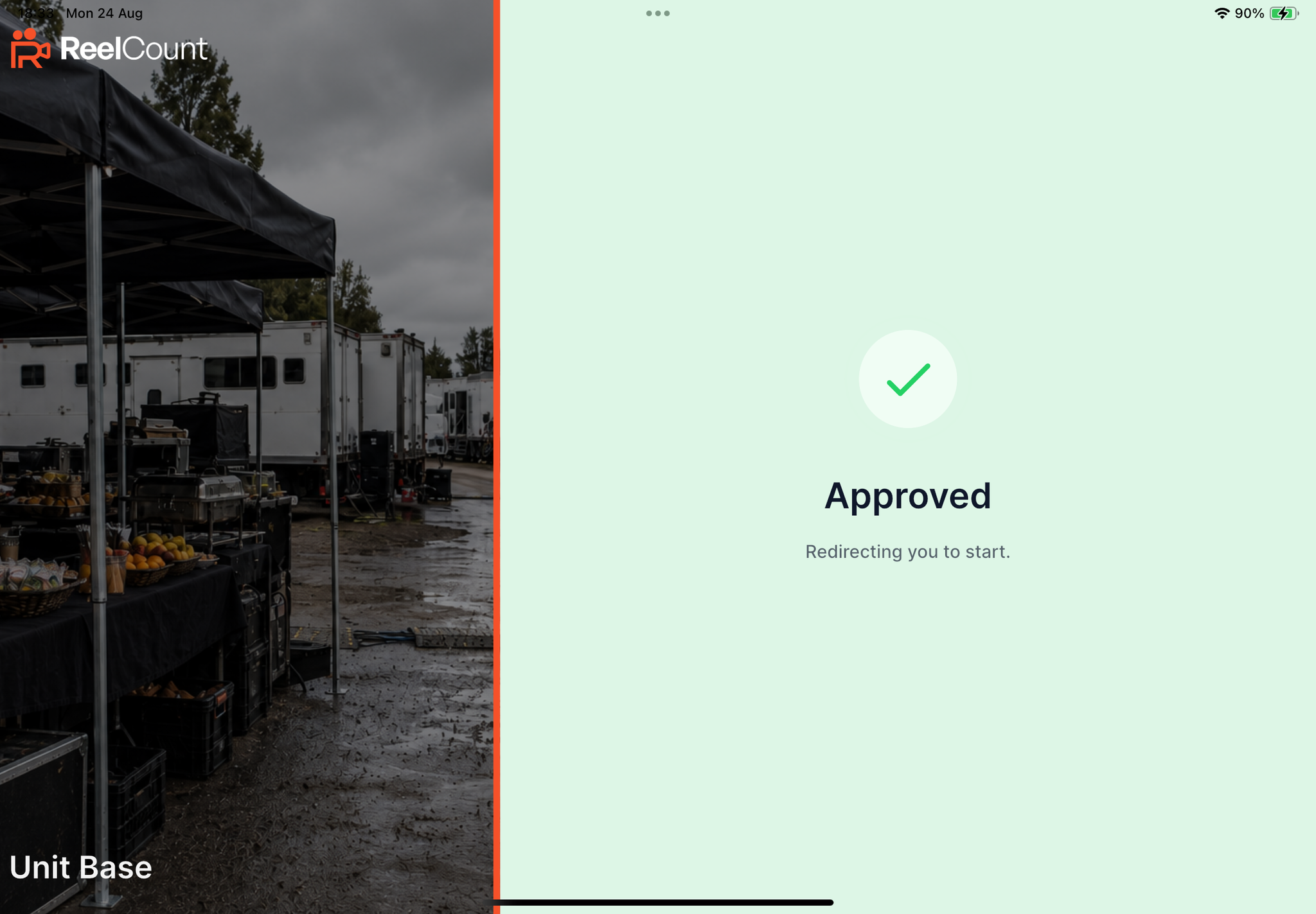
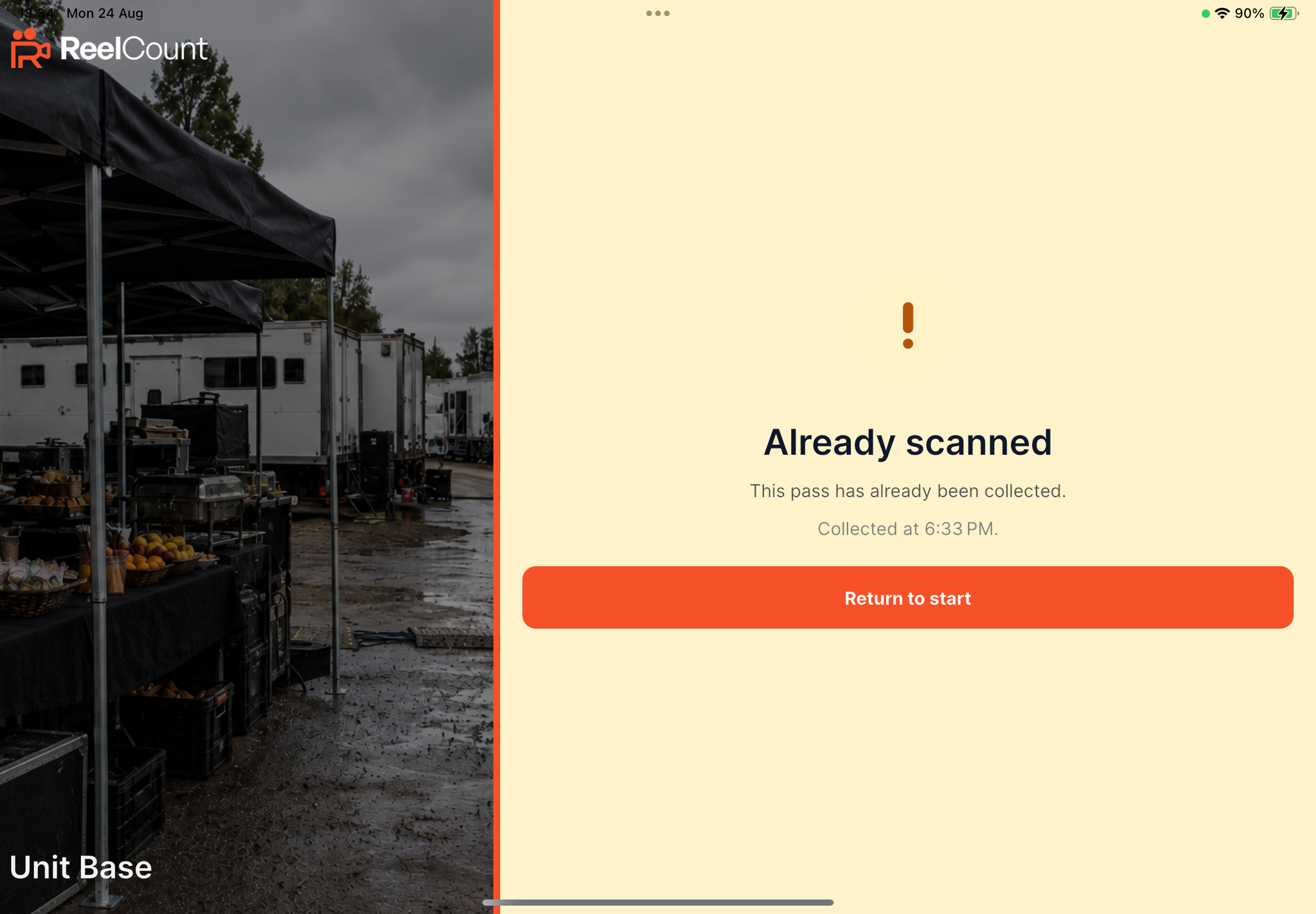
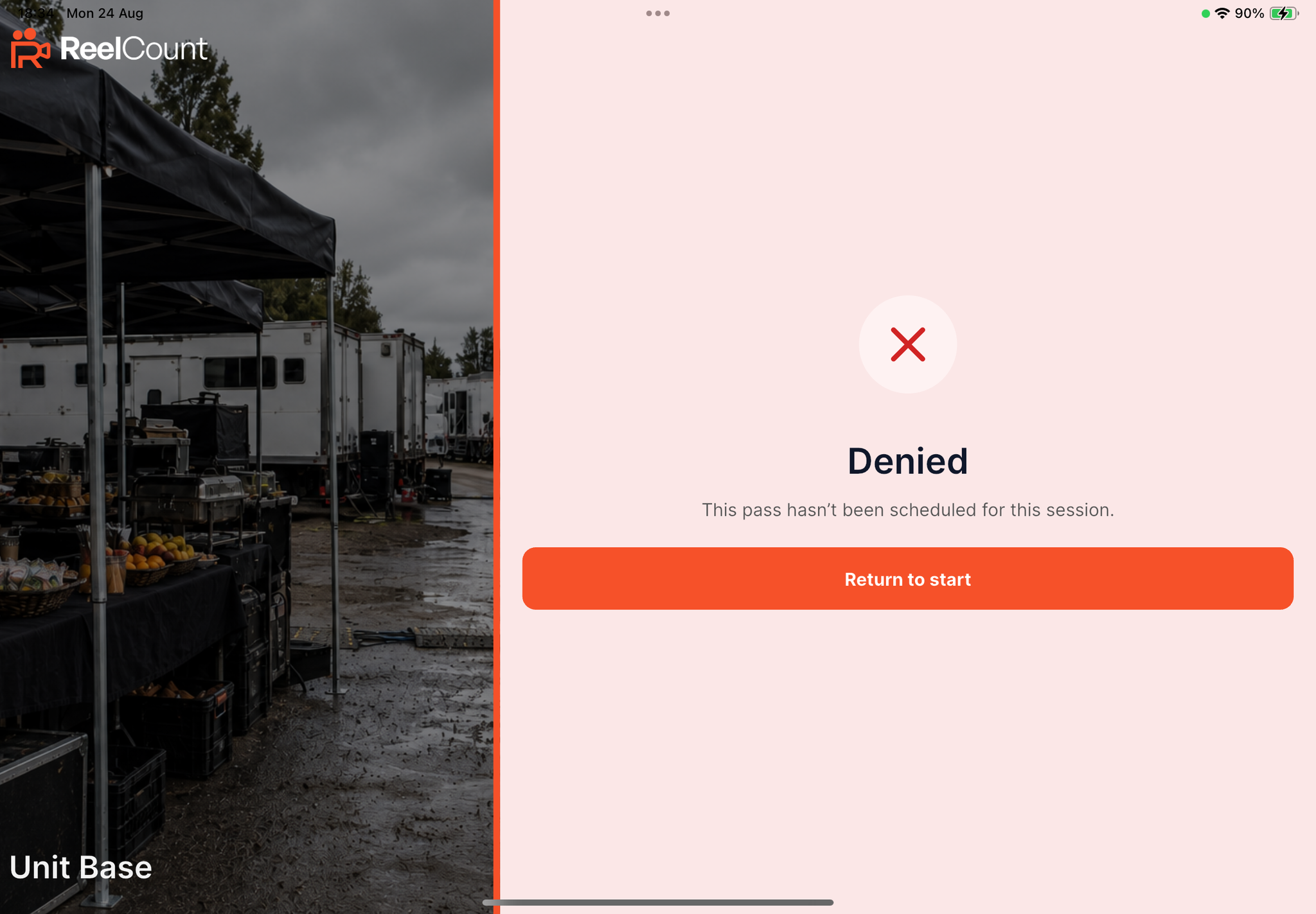
⚠️ Note: A pass works once per session at a locked location. If a crew member is scheduled for more than one session in a day (say lunch and supper), their pass works once in each. Tomorrow's sessions are completely separate.
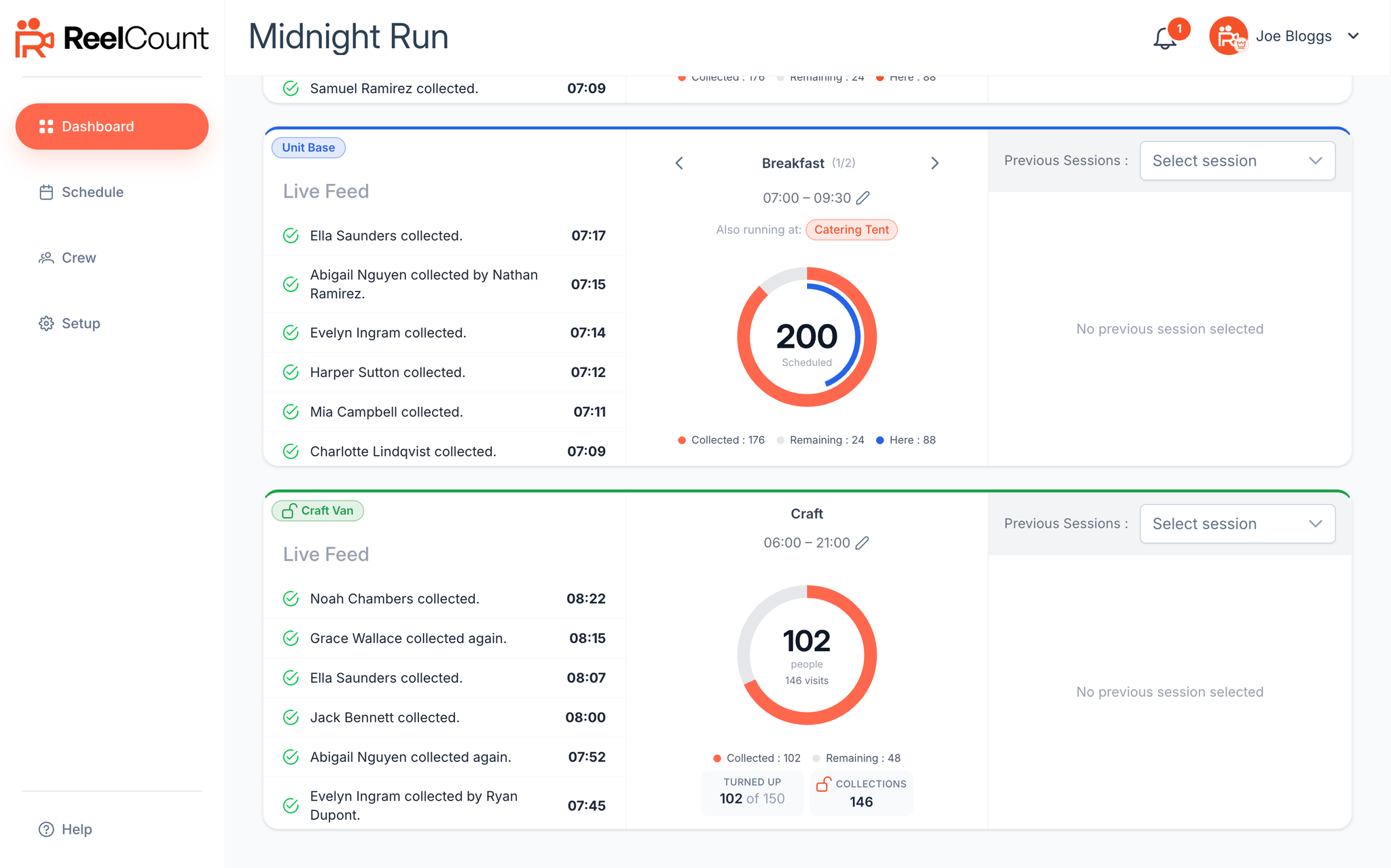
ℹ️ Admin portal: If someone scans a pass that was already collected, the scanner shows Already scanned. The Dashboard live feed may still list the event as denied until a backend copy update ships — the meal was not collected twice.
When Wi-Fi is slow or drops
The Scanner app needs a live internet connection:
- If the connection fails mid-scan, an amber Desk appears: Couldn't reach ReelCount / This pass has NOT been checked (chip: Connection issue). The pass is not marked as collected — it's safe to scan again once Wi-Fi is back.
- A red Denied screen means ReelCount answered and refused the pass — that's different from a network problem.
- If ReelCount had a problem checking the pass, you may see Couldn't check this pass (chip: Not checked) with This pass has NOT been collected.
On the home screen, Attempting to reconnect… means the iPad can't load session data. Check Wi-Fi, wait for the app to retry, or tap Return to start.
Collecting for Multiple Crew
There are two ways for a crew member to collect on behalf of someone else:
1. Scan multiple passes
- Select Scan multiple passes in the app.
- The crew member collecting must first scan their own pass to identify themselves (Scan your own QR code first.). This doesn't use up their meal.
- The app then asks "Do you want to collect your own meal now?" They can collect their own at the same time, or just continue scanning for others.
- They then add other crew by scanning their passes one by one (Scan another QR code / Scanning complete).
- At the end, the app confirms the number of meals approved.
- The person collecting doesn't need to be scheduled themselves that day. They just need a valid pass to identify who's doing the collecting.
- If a pass was already collected in this session, the app shows Already scanned and lets the collector continue scanning other passes.
⚠️ Warning: Always make sure the correct collector scans first. This ensures the admin portal records who collected on behalf of others.
2. Department quick pickup
- As an admin, turn on Quick department pickups in the location's settings (Setup → Locations → three dots → Edit). This adds Department quick pickup on the scanner — at locked and unlocked locations.
- The crew member selects Department quick pickup and scans their own pass to identify their department.
- A list of everyone in their department scheduled at that location today is displayed, with those still to collect automatically selected. The collector can deselect anyone they don't want to pick up for.
- At a locked location, anyone who has already collected in this session is shown as Collected and can't be selected again.
- At an unlocked location, everyone stays selectable — each confirm adds one more visit per person.
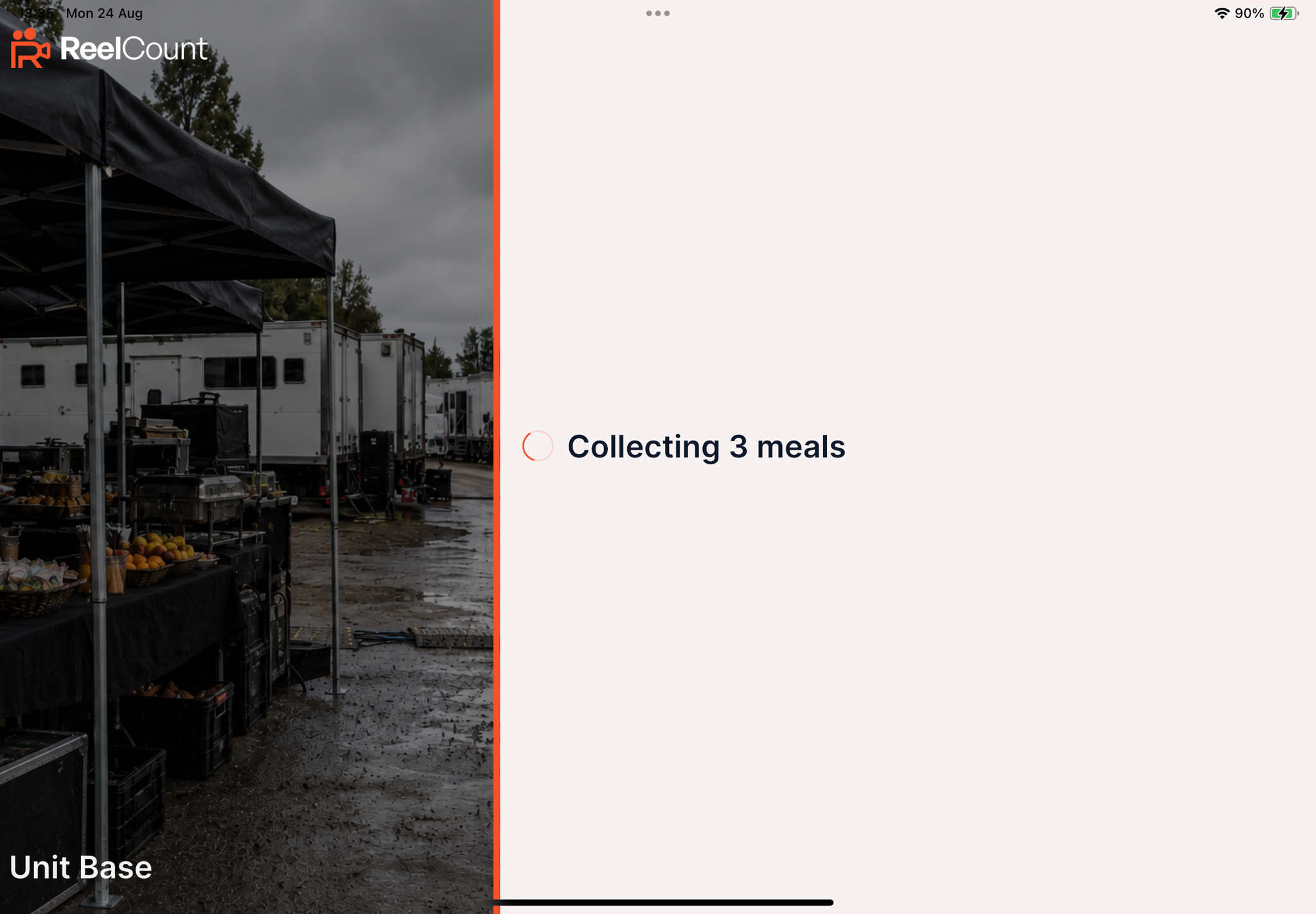
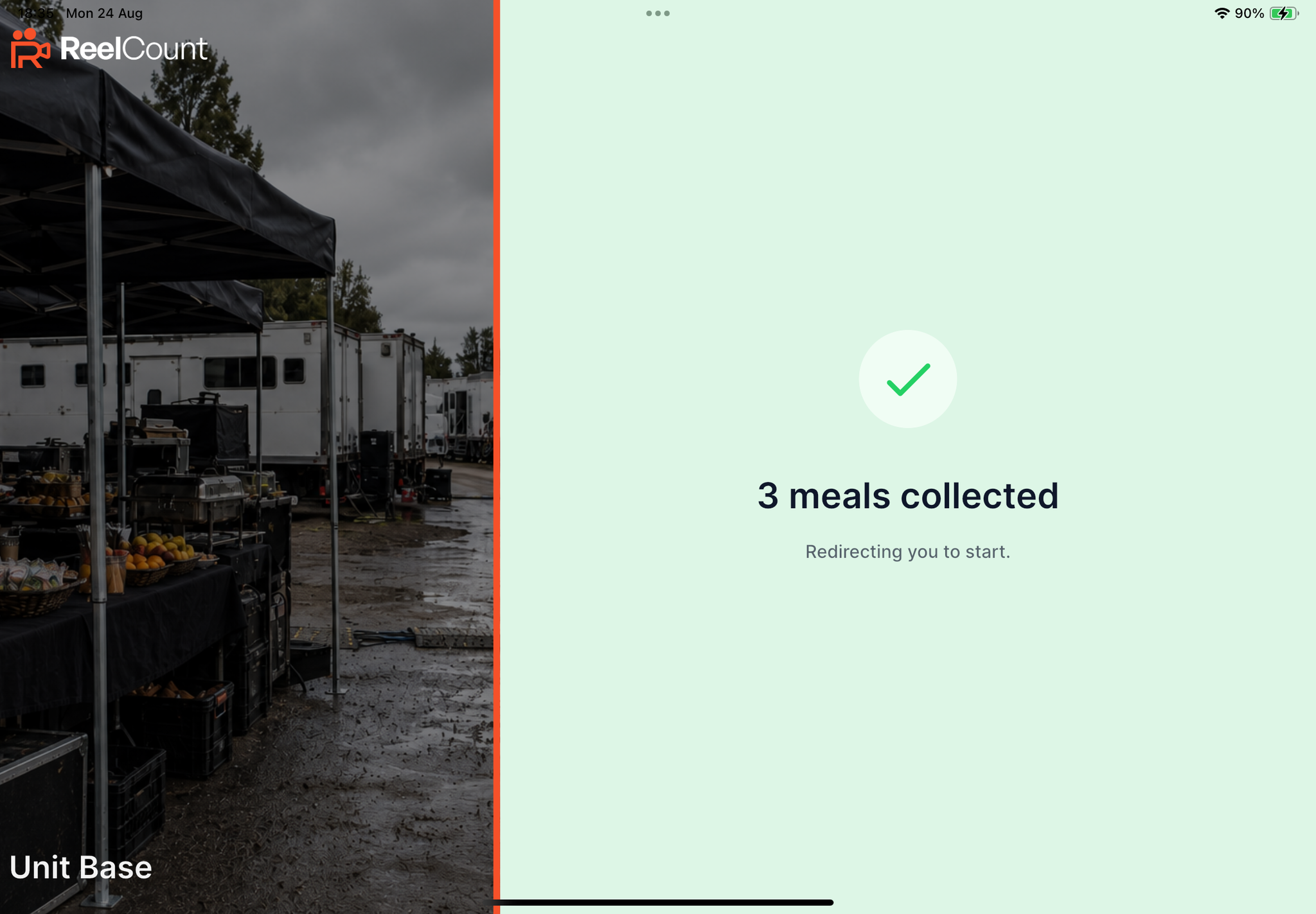
- Tap Confirm Pickup to collect all the selected meals in one go. The app then shows how many meals were collected (1 meal collected / N meals collected).
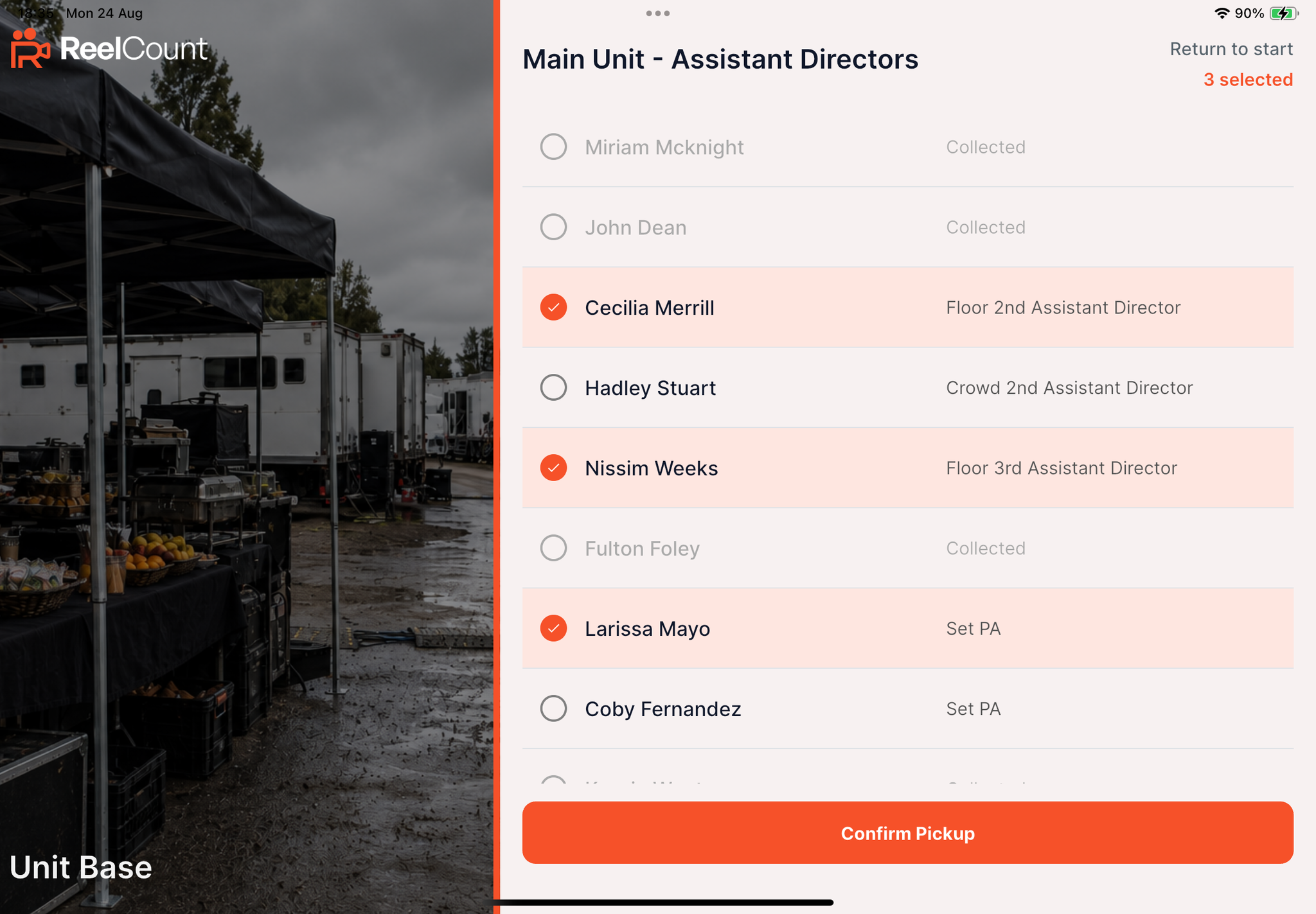
⚠️ Warning: If a crew member is not displayed within a department list, they have not been scheduled at that location for that day.
Unlocked Locations
If a location is set up as an unlocked collection point (craft, coffee, snacks), scheduled crew can scan as many times as they like while the session is open. Each scan counts as another collection (visit).
- Scan your own QR code and Scan multiple passes both support repeat collections.
- Department quick pickup is also offered when Quick department pickups is enabled. Everyone in the department list stays selectable, and each confirm adds one visit per selected person.
- Crew who aren't scheduled there today are still turned away.
Key Points
- Tap to start = session live. Not serving / Service has ended / No session today = schedule timing, not a fault.
- Attempting to reconnect… or mid-scan Couldn't reach ReelCount = network or connectivity — the pass was not consumed.
- Each crew member collects once per session at a locked location; unlocked locations allow repeat scans for scheduled crew.
- Multiple collects and quick pickups are logged in the portal and appear in the Live Feed on your dashboard.
That's how the Scanner app is used to manage collections quickly and securely on site.
Related Articles