
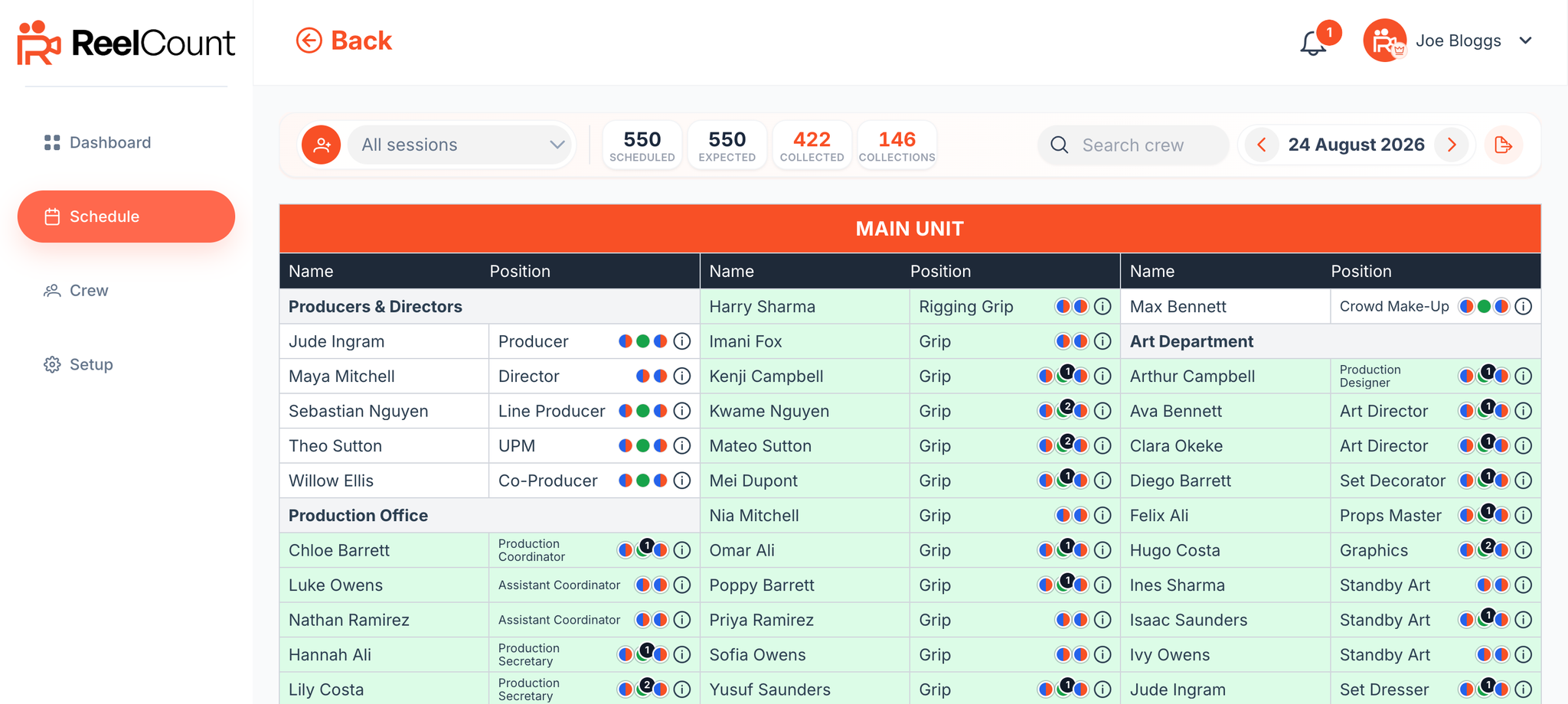
The Schedule page gives you a calendar view of your production. Click any day to open its Day Overview, showing who is scheduled, which session and location they're due at, and their collection status.
Viewing Crew for a Day
Click on any day in the calendar to open the Day Overview.
- If no one is scheduled, you'll see an empty state inviting you to add crew.
- If crew are scheduled, they're listed under each session, grouped and ordered the same way as your Crew page (by unit and department).
At the top, three stat chips summarise the day:
- Scheduled – the headcount frozen when each session went live. Stays fixed while the session is live (or finished); opens again only if you move that session's start into the future.
- Expected – the live forecast, including crew added or removed after go-live.
- Collected – meals actually picked up.
Filtering by Session
The toolbar has a session filter. This lets you focus on a single session:
- With All sessions selected, the stat chips cover everyone scheduled that day.
- With a session selected, they show only that session's crew — and you can edit the session's name, times, and locations from here.
- Crew scheduled into more than one session appear under each of them, so catering can plan for maximum numbers.
There's also a Search crew bar to jump straight to an individual, and the Export to Excel button uses whatever filter you have applied.
Understanding the Colours
Crew members are highlighted based on their collection status:
- White – Scheduled but not yet collected.
- Green – Collected their own meal.
- Blue – Meal collected on their behalf (by a colleague at the scanner, or marked by an admin).
Click any crew member to see the full detail — who collected, when, and at which location.
Deleted Crew Members
If a crew member has been removed from your database, they will still be displayed in your previous days, to keep your historical data accurate even with unexpected changes.
- Deleted crew members in previous days are greyed out with a line through the name and job title.
- Deleted crew members are automatically removed from future scheduled days and won't count towards your numbers.
Key Points
- The session filter helps you check numbers for a specific meal service.
- Crew can appear under more than one session if scheduled into several.
- The day view always mirrors the unit and department order set on the Crew page.
That's how to filter and read the Schedule — giving you a clear picture of who's due and where, each day.
Related Articles